![End to End logo dark landscape cropped-01.png]](https://26925870.hs-sites-eu1.com/hs-fs/hubfs/End%20to%20End%20logo%20dark%20landscape%20cropped-01.png?height=40&name=End%20to%20End%20logo%20dark%20landscape%20cropped-01.png)
Key Points: Using HubSpot to create leads in integrateCRM
1. Access deals in HubSpot.
From the CRM menu, select deals.

2. View pipelines.
Each deal belongs to a pipeline. Users may work with a single pipeline or multiple pipelines, for example, one pipeline for domestic customers, another for commercial customers.
3. Create a new deal.
From the main deals page, click create deal in the top-right corner.
Note: Deals can be automatically created from web enquiries, capturing new web leads as Hubspot deals without the need for manual entry.

4. Criteria for lead creation.
For a deal to create a lead in integrate, all the following criteria must be met:
a. The deal has an associated contact.
b. The deal is at a qualified stage . Stages vary by organisation and can be configured by EndtoEnd support, for example, appointment scheduled.
c. The deal has a deal owner.
5. Mapping HubSpot data to leads.
When the criteria are met, a lead is automatically created in integrateCRM, where:
a. Lead name is based on the contact’s surname, unless a company name exists, in which case that is used.
b. Installation or delivery address is pulled from the site name on the deal or from the contact's profile. This can be configured by EndtoEnd support.
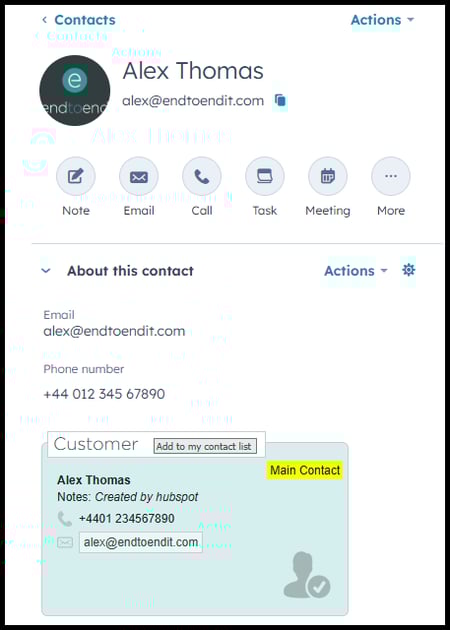
c. Email address, postal address, and phone number come from the contact’s HubSpot profile.

6. Updating leads created from HubSpot.
Leads created from HubSpot cannot be edited directly in integrateCRM. Changes to customer details must be made within HubSpot, the lead will automatically update.
Note: If a lead does not refresh after making a change in HubSpot, changing the deal stage in HubSpot and then reverting it forces the lead to refresh in integrateCRM.
Key Points: Using integrateCRM to update deals in HubSpot
1. Transferring a PDF quote.
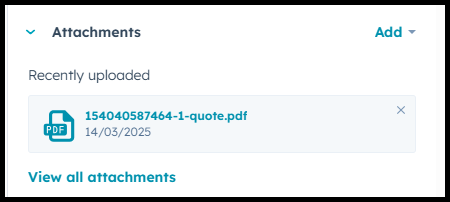
After publishing a quote and generating the quote PDF, integrate automatically transfers the document to HubSpot. It can be found in the attachments section of the corresponding HubSpot deal.
2. Updating deal amount.
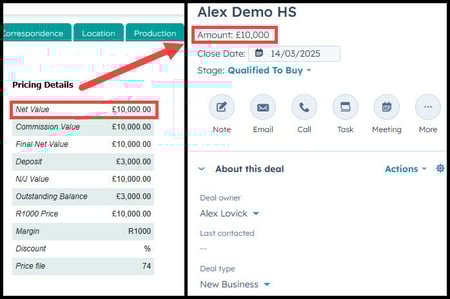
Once a quote is processed as an order, the amount field in the HubSpot deal will automatically reflect the net value of the corresponding order in integrate. This can be configured by EndtoEnd to either include or exclude VAT.
3. Order revisions.
If an order is revised, the deal amount will automatically update to match the value of the quote used to revise the order.
Note: To revise existing orders, follow the step-by -step instructions in this guide.