![End to End logo dark landscape cropped-01.png]](https://26925870.hs-sites-eu1.com/hs-fs/hubfs/End%20to%20End%20logo%20dark%20landscape%20cropped-01.png?height=40&name=End%20to%20End%20logo%20dark%20landscape%20cropped-01.png)
Video Guide: Processing and Revising an Order
This video shows how to turn published quotes into new orders, and revise existing orders.
Key Points: Processing a New Order
1. Process as new order.
From the quote matrix page, click the process as new order button, at the bottom right of the page.

2. Turn quote into order.
Choose a prefix for the order number, then click turn quote into order.
Note: Order number prefix options are company-dependent and can be configured in order settings.
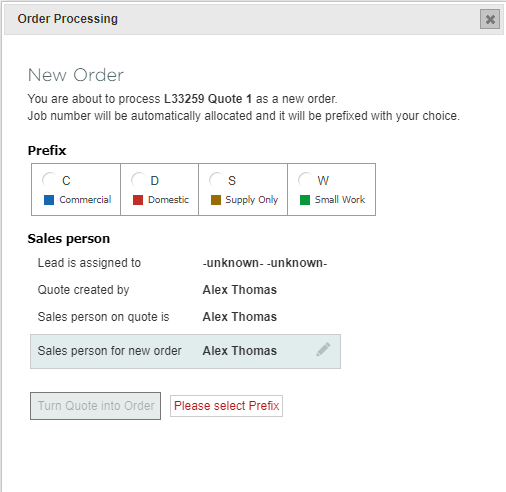
3. Additional options.
Additional options of sending an email to the salesperson assigned to the lead and updating the lead status to won will be offered.
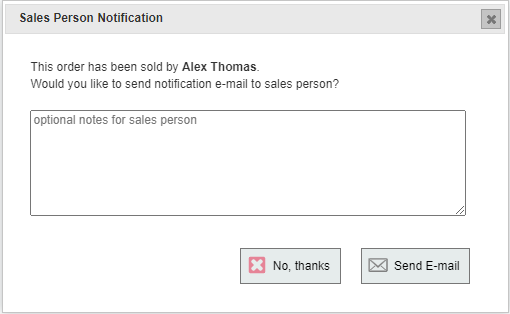
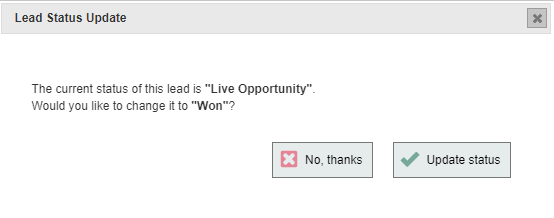
Key Points: Revising an Existing Order.
1. Find the original quote.
From the order page, under the general tab, click the quote reference to return to the original quote for that order.

2. Copy quote.
From the quote matrix page, click copy quote to create a new open quote based on the published quote.
3. Update drawings.
Click the pencil icon next to any item to open the drawing. Make required changes and save the drawing. To add or remove items, or switch the drawing go to quote overview. Once all desired changes have been made, click update drawings, then publish quote.
4. Revise selected order.
Click revise existing order, select order to be amended, click revise selected order. The order will be updated to reflect the changes made to the drawings.
