Adding Ironmongery to a drawing
Introduction to adding hardware to a drawing.
- To add ironmongery to a drawing, click Finish and Ironmongery on the right and then the dialog button next to Ironmongery on the left.

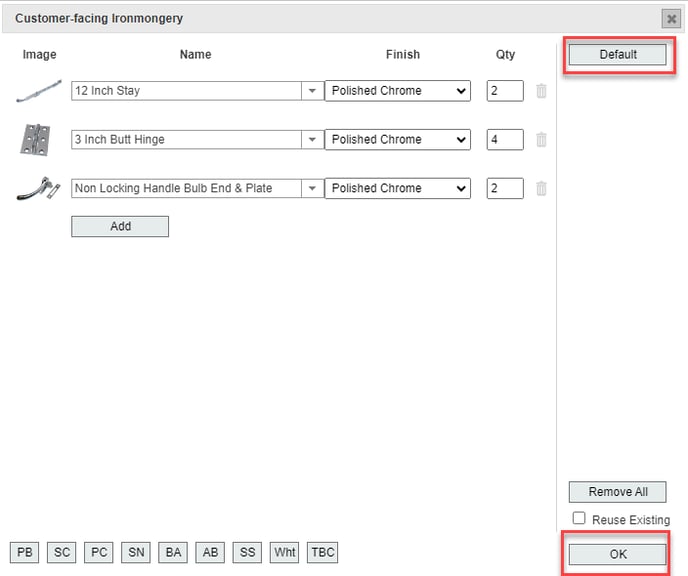
- This opens the Customer-facing ironmongery menu. Any ironmongery added here will appear on the quote for the customer to see. Ironmongery that isn't visible to the customer can be added via the Allocated Parts menu.
- Click Default to automatically add the default ironmongery selection for the current design of window/door, then OK. (If ironmongery ranges have been configured, there will be a Default button for each range.)
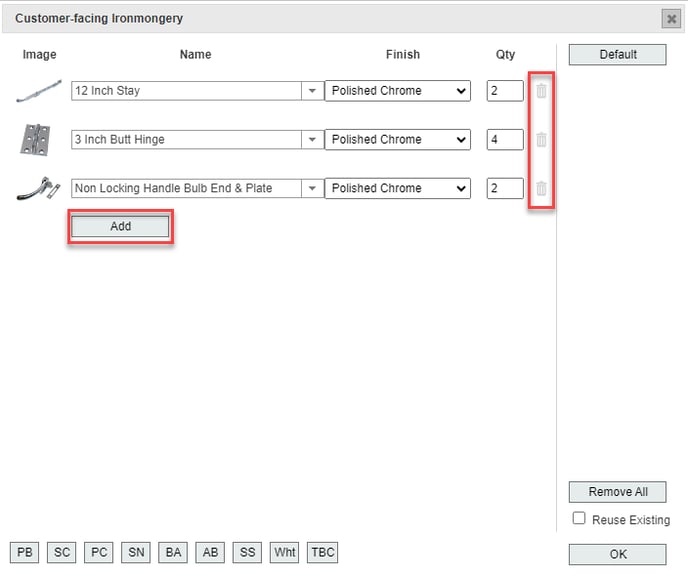
- To manually add or remove ironmongery parts, use the Add button or the bin icon next to each part, then OK to apply the current selection.
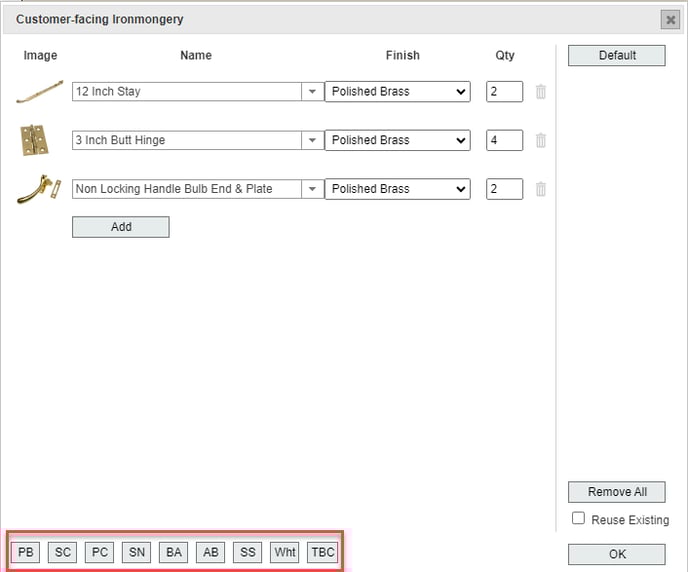
- To quickly change the finish of all items, use the shortcut buttons along the bottom (PB for Polished Brass, SC for Satin Chrome, etc), then OK.
- To add non-standard ironmongery (i.e. parts that have not been added to integrate), you can use the Free-text Ironmongery menu. Open the dialog window, click Add, fill in the Name, Finish, and Quantity, and then click OK.