HubSpot Leads
If you have integrate set up to connect to HubSpot's CRM system, Leads can be created automatically from Deals in HubSpot.
- Deals in HubSpot are accessed through the CRM menu.
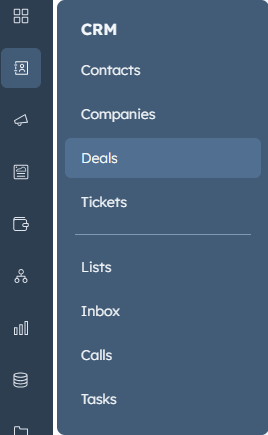
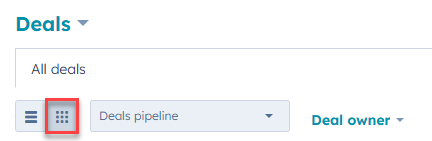
- All deals belong to a pipeline. Your organisation may use a single pipeline, or separate pipelines e.g. for domestic and commercial customers respectively.
- Click the board icon to see an overview of all stages within the selected pipeline, showing which deals are at each stage.
Deal stages can be customised by clicking the drop-down menu and then Edit pipelines. 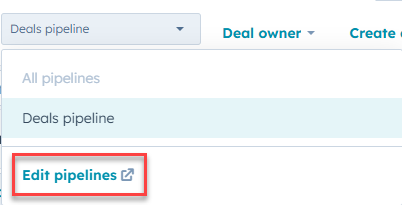
- To create a new deal, click Create deal in the top right of the main Deals page.

This can also be automated, so that website enquiries generate a lead.
- For a deal to create a Lead in integrate, 2 criteria must be met:
- The deal must have an associated contact.
- The deal must be at a qualified stage. Qualified stages differ by organisation, and can be configured by EndtoEnd support.
- The deal must have a Deal Owner.
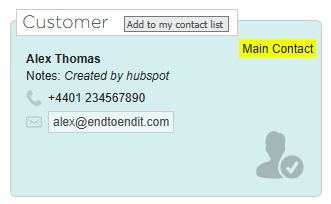
- If the above criteria are met, a Lead is generated in integrate with the HubSpot contact as the main contact in integrate. If the deal has multiple contacts, they will all be added to the Lead.
- The Lead name is based on the main contact's surname, unless the main contact has a Company Name on their HubSpot profile, in which case the Company Name is used.
- Installation / Delivery address comes from the Site Name on the deal.

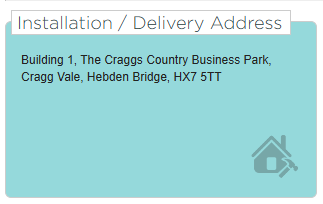
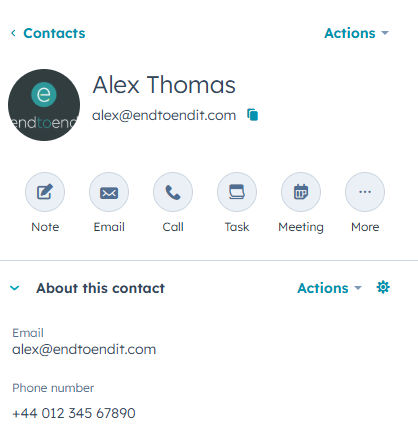
- Email address, postal address, and phone number come from the contact's profile in HubSpot.
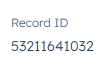
- The Lead label comes from the Record ID on the deal. This number can be searched in both integrate and HubSpot to easily find out which records are linked.

- Leads created from HubSpot cannot be edited within integrate: changes to customer details etc must be made within HubSpot, and the Lead will update automatically. Occasionally, a Lead may fail to update when changes are made within HubSpot: if this happens, simply change the deal stage in HubSpot, and then change it back again, and the Lead in integrate will refresh.