There are two ways to import an email: from the Correspondence tab, or from the E-mail page.
Importing from the Correspondence tab - useful for importing one or more emails to a single Lead or Order.
- From the Correspondence tab of a Lead or Order, click Import Email from Mailbox on the right of your screen.

- From there, locate the email in your Inbox or Sent Items, and click the Import button. Repeat for multiple emails.

Importing from the E-mail page - useful for importing multiple emails to different leads/orders.
- Click the E-mail button in the top right of integrate.

- Locate the email in your Inbox or Sent Items. The system will try to suggest the correct Lead or Order on the right, otherwise you can search for the relevant record under Manual Import.
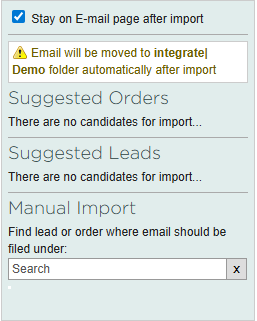
- When importing several emails it is recommended to tick the Stay on E-mail page after import option, otherwise you will be taken to the Correspondence tab after each import.
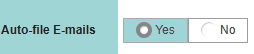
Auto-file E-mails
This is a setting on each user's profile. When switched on, imported emails will automatically be moved from the user's inbox into a separate folder in Outlook/Gmail called integrateCRM.