This is a guide on how to connect xero accounting software to integrate.
integrate can link to Xero accounting software, allowing you to generate draft invoices in Xero based on quotes and orders in integrate. This guide explains how to connect the two systems, assuming that you have already subscribed to this feature as part of your integrate package.
Step 1.
Navigate to the xero development page
To do this open a new tab in your browser and type https://developer.xero.com/myapps/
Then click the "New App" button located in the top right of the page 
Step 2.
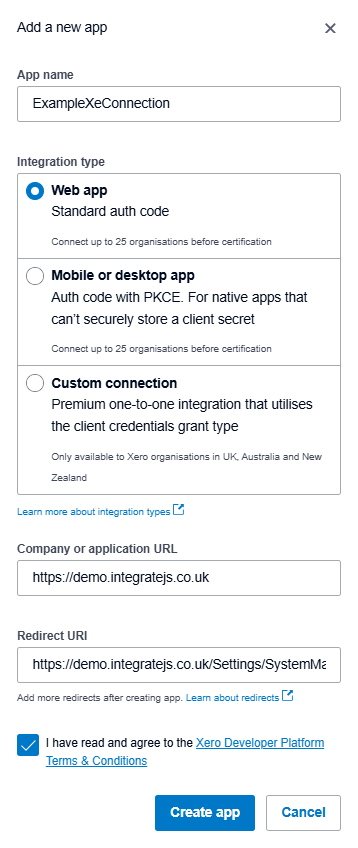
Once you have clicked the new app button a form will appear:
- App name: This is the internal name of what the connection to integrate will be called within xero.
- Integration Type: Select the web app option.
- Company or application URL: This is the URL of your integrate application (E.G. https://demo.integratejs.co.uk/).
- Redirect URL: this it the URL for the "Accounting System tab" within your integrate application (E.G. https://demo.integratejs.co.uk/Settings/SystemManagement/AccountingSystem)
- Terms & Conditions: This is just a tick box to say you agree to Xero's terms of service.
Once you have filled out all the details correctly click the "Create App" button located at the bottom of the form.
Step 3.
Now navigate over to "Configuration" tab located on the left hand side of the newly created app. You will now see a "Generate a secret" button click this to generate your "client secret"
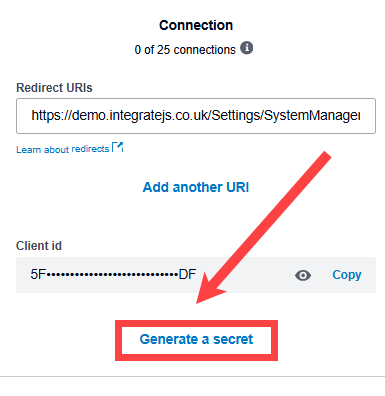
After generating your secret, make sure to record the "Client Secret" and "Client ID" in a secure location, such as a text file in Notepad. You'll need these values to input into your integrate application.
Step 4.
Email the Client Secret and Client ID to support@endtoendit.com, and wait for confirmation that these values have been inputted to the system.
Step 5.
Within integrate, click you name in the top right, then Settings > System Management > Accounting System, and click the button "Authorize & obtain new Xero access token"
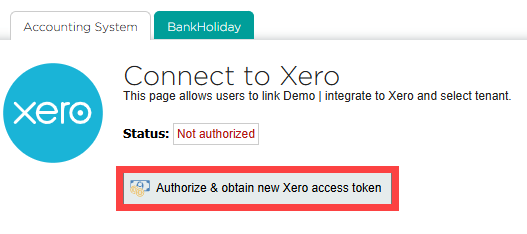
If prompted to log into your Xero account, please do so.
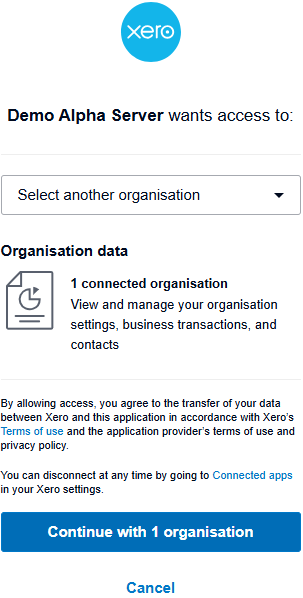
You will be presented with a page to grant Xero access. Please select your organisation then click "Continue"
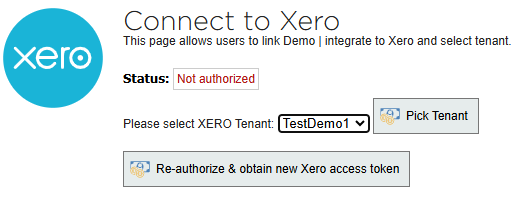
Integrate will now display a drop down box to select the tenant please select yours then click the "Pick Tenant" button to select the choice.
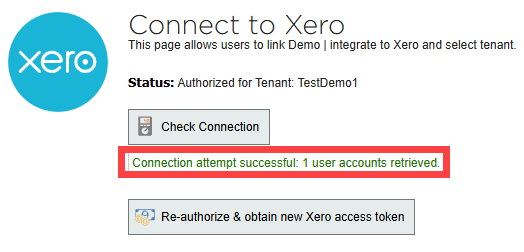
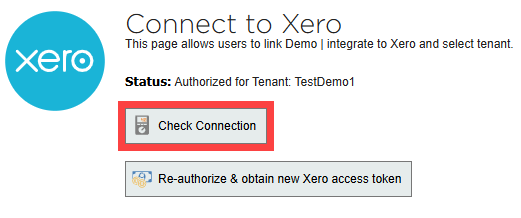
Integrate will now present a "Check Connection" button. Clicking this button will initiate a verification process for the connection. If your Xero connection is successful, you will see a message confirming "Connection attempt successful."
Congratulations Xero should now be successfully connected to integrate.