
How to update Graph Secret in integrate
Video Tutorial
1. Click HERE to go to Microsoft Entra.
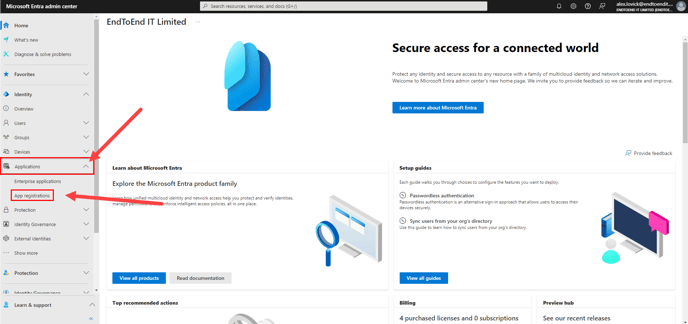
2. On the main dashboard of Entra, look for the navigation bar on the left side of the screen. Click on the "Applications" tab to reveal additional options, and then select the "App registrations" tab from the dropdown menu.
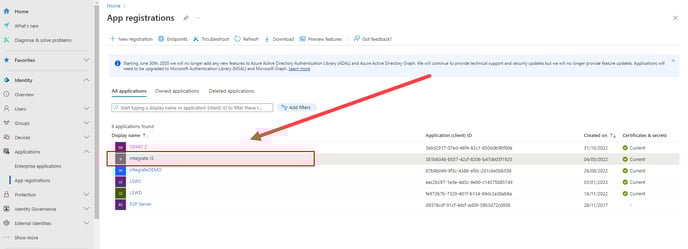
3. Within the "App registrations" page select the "All Applications" tab and locate the "Integrate JS" application, click it to move to the application view.
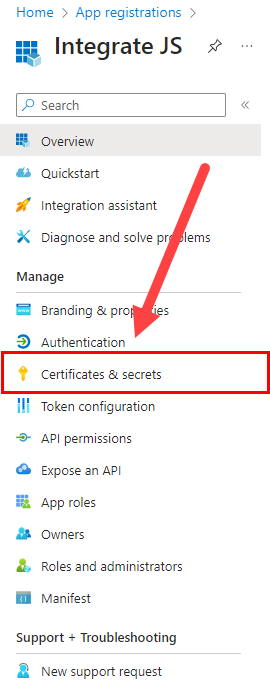
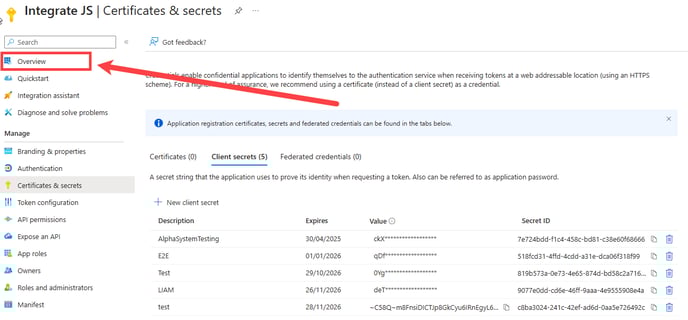
4. Locate and select the "Certificates & Secrets" tab on the left hand side navigation bar.
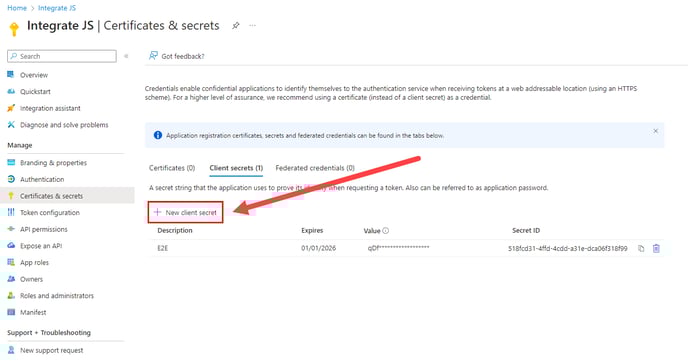
5. To renew the graph secret click the "+ New Client Secret"
6. Set the description to "Integrate" and expiry to "730 day (24 Months)" then click the "Add" button to complete the new secret.
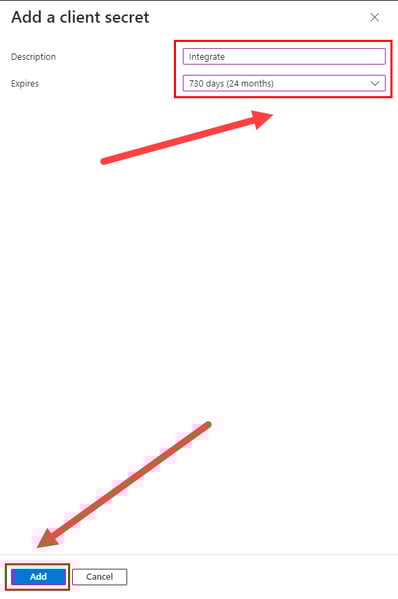
7. Now copy the "Value" of the secret.
8. Navigate to Settings/SystemManagement/Secret within your integrate app
You can do this by going via:
Profile (Top right / person Icon) -> Settings -> System Management -> Secret

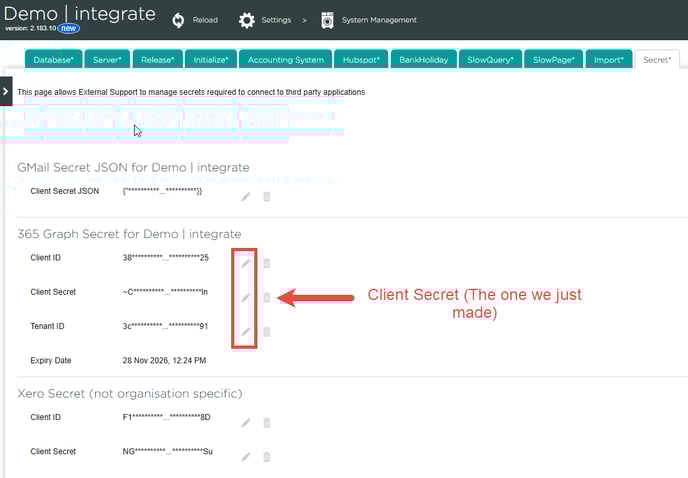
9. You can now update the secret by selecting the small grey pencil next to the "Client Secret" line and paste in the Value from the client
Please Note: If you're just renewing your secret you can stop here you will only need to update your secret not the Client & Tenant ID too.
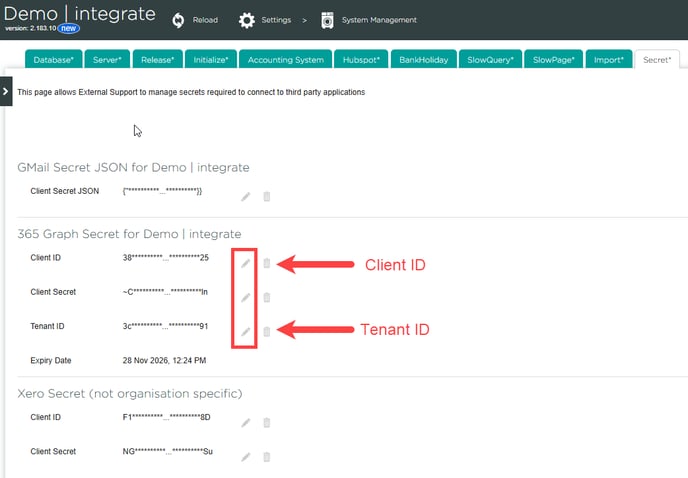
10. Now Back on "Entra" navigate to the "Overview" Section to locate the application ID and Tenant ID
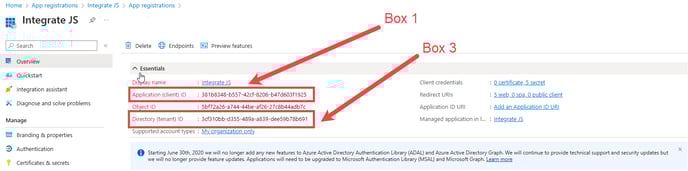
11. Now copy and paste those values into their respective boxes under the secret tab within integrate and that's it your secret has now been updated.