
A quick summary on how to export leads to a CSV file.
1. Located within the "Leads" section of integrate on the left hand side of the user interface, "Lead Export" can be found.
 2. Export Option Step
- A - Lead Created: Allows the user to select the desired dates.
- B - Lead Status: Allows the user to select leads with a specific status.
- C - Export to CSV: Downloads a CSV to your computer based on the previous fields selected.
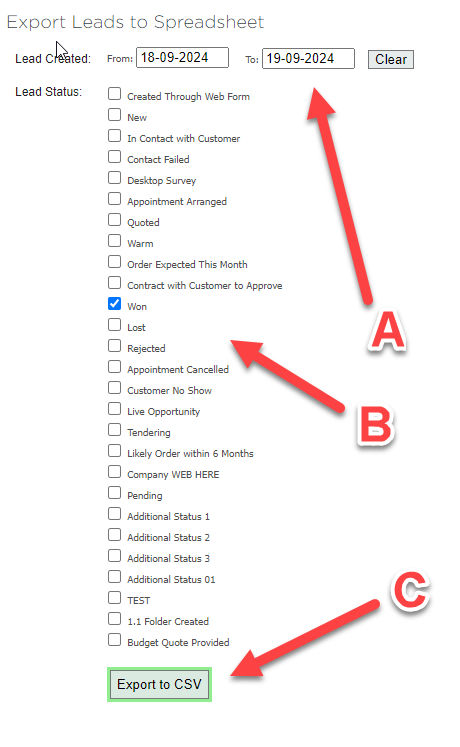
3. When you are satisfied with your chosen options, click the "Export to CSV" button. This action will initiate the export process and download your selected leads as a CSV file to your device.
Alternatively, you can go to Lead List and click the Export to CSV button in the bottom right. 
This will export the date range and columns that you currently have selected, and will take account of any filters you have applied.