Video walk through on adding leads. Plus some explanation other lead related functionality.
• How to add leads- Both commercial and homeowner
• How to find new leads
• How to allocate leads/ enquiries
• How to search for existing leads
• How to create a new lead for and existing customer
• How users receive leads via email.
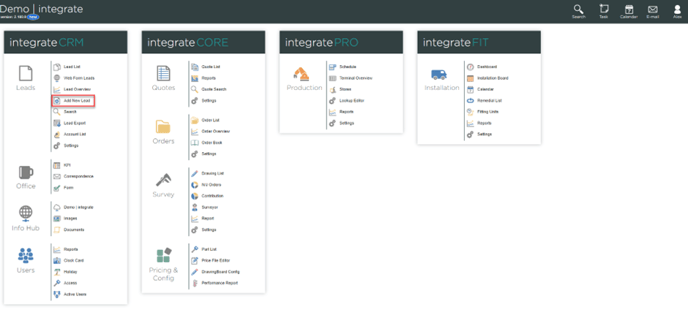
- From the main page, click Add New Lead.
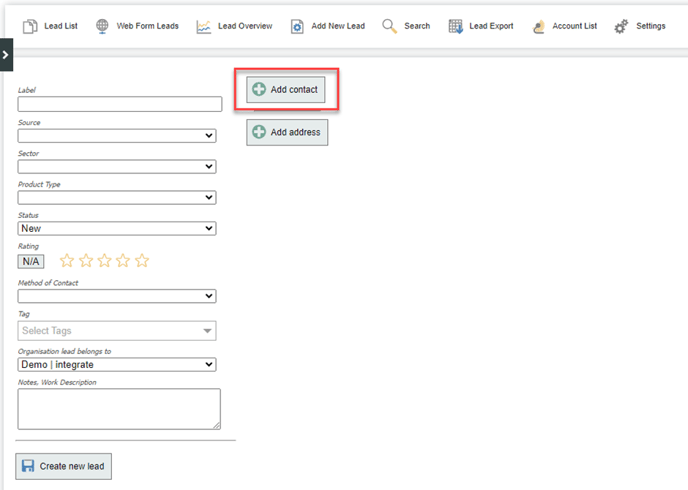
- Click Add Contact.
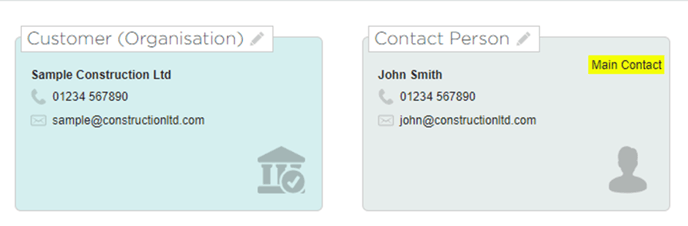
- On the right-hand side of the screen, choose whether the new lead is a homeowner (Human) or an Organisation. Fill in the name and contact details, and click Create box.
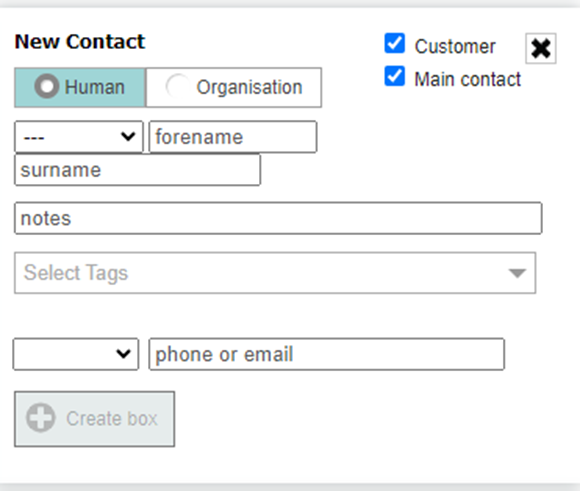
- The first contact you create for any lead will automatically be marked as the Main Contact, but you can easily change this by adding another contact and ticking the Main Contact box. This is useful if the customer is an organisation, and you’re speaking to a particular person within that organisation.
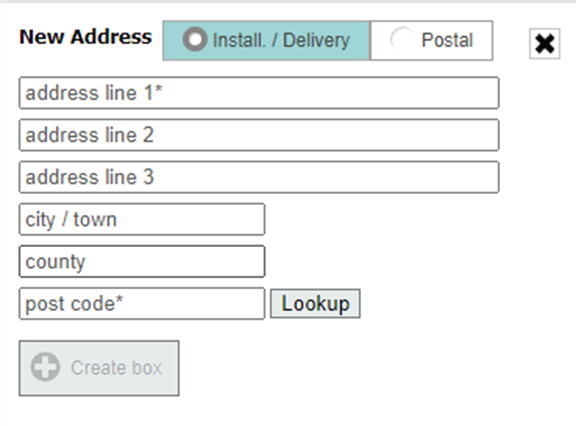
- Click Add address, then fill in the address details on the right-hand side, and click Create Box. It’s possible to add more than one address if the lead has separate installation and correspondence addresses.
- Fill in any fields on the left-hand side, such as Source and Method of Contact (these can
always be added later), then click Create new lead.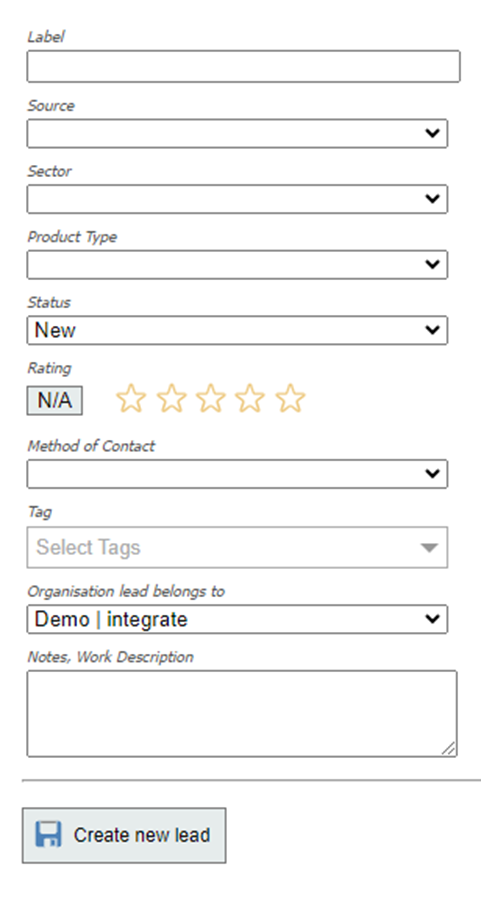
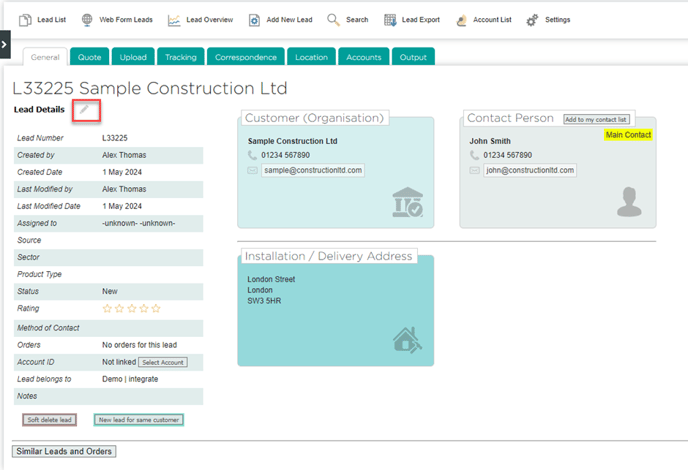
- The lead will be created with an automatically generated L reference number. To edit the lead, click the pencil icon next to Lead Details.