![End to End logo dark landscape cropped-01.png]](https://26925870.hs-sites-eu1.com/hs-fs/hubfs/End%20to%20End%20logo%20dark%20landscape%20cropped-01.png?height=40&name=End%20to%20End%20logo%20dark%20landscape%20cropped-01.png)
Key Points: Generating Correspondence Reports
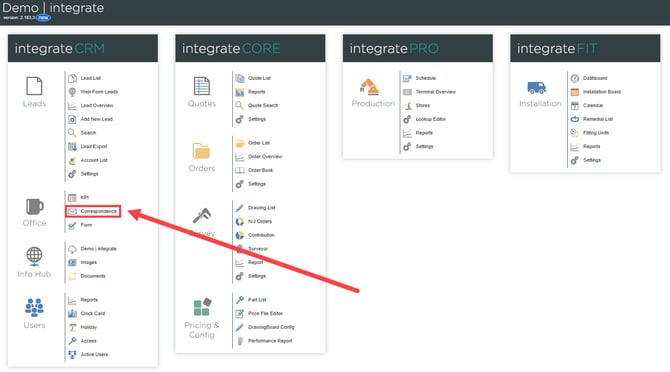
1. Go to the correspondence page.
From integrateCRM home page, click on correspondence.
2. View the initial correspondence.
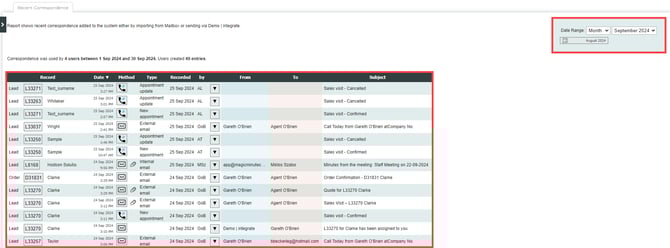
On the correspondence page view the initial correspondence table, consisting of:
a. Lead number (e.g. L33271)
b. Surname (e.g. Smith)
c. Date (format: DD/MM/YY / time)
d. Method (e.g. email)
e. Type (e.g. new appointment)
f. Recorded (e.g. AL)
g. By (e.g. AT)
h. From (e.g. alex.thomas@endtoend.com)
i. To (e.g. demo@endtoend.com)
j.Subject (e.g. sales visit)
3. Adjust the date range.
Click on the dropdown menu on the right of the screen, to adjust the date range for displayed correspondence, by:
a. Day
b. Week
c. Month
d. Year
e. Custom range
4. View communication activity.
The correspondence page shows the total number of interactions recorded within the specified date range.

Note: If added events are not appearing on the calendar, check enabled display filters. If all boxes are unchecked, no events will be shown. Select the relevant boxes to enable the desired categories, refresh the calendar to display updated events.
