![End to End logo dark landscape cropped-01.png]](https://26925870.hs-sites-eu1.com/hs-fs/hubfs/End%20to%20End%20logo%20dark%20landscape%20cropped-01.png?height=40&name=End%20to%20End%20logo%20dark%20landscape%20cropped-01.png)
Key Points: Finding leads, Enquiries, and Documents
1. Activate the search bar.
Press Alt + S to focus the search bar without using the mouse.
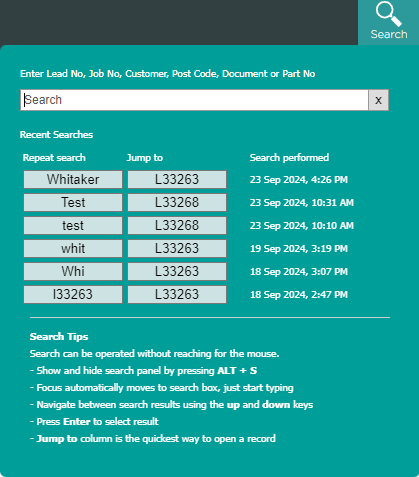
2. Start a search.
Type a name, number or keyword and select the relevant result from the dropdown. The dropdown shows matching leads, folders and documents.
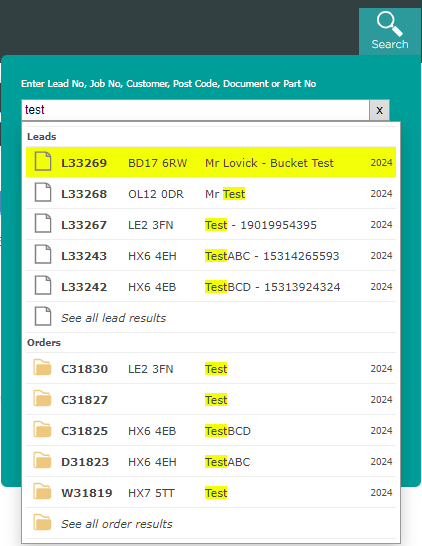
3. Searchable fields.
The search bar matches these fields:
a. Customer name
b. Document
c. Job number
d. Lead number
e. Postcode
f. Part number
4. Refine results with multiple keywords.
Combine keywords with && to narrow results. Example: smith && sw11 returns customers named Smith with postcode SW11.