![End to End logo dark landscape cropped-01.png]](https://26925870.hs-sites-eu1.com/hs-fs/hubfs/End%20to%20End%20logo%20dark%20landscape%20cropped-01.png?height=40&name=End%20to%20End%20logo%20dark%20landscape%20cropped-01.png)
Video Guide
Creating a remedial
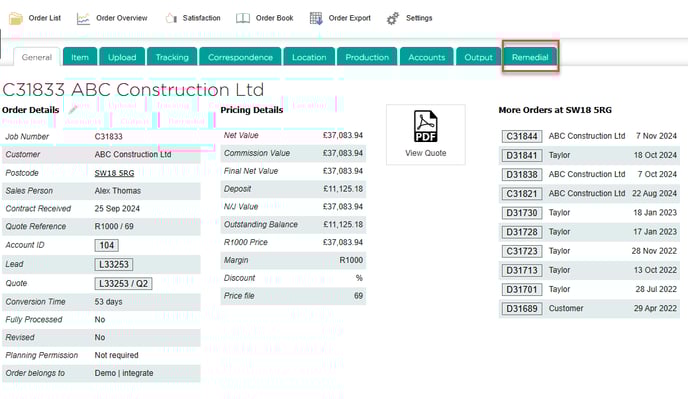
- To create a remedial, go to the defective order, and then click on the Remedial tab.
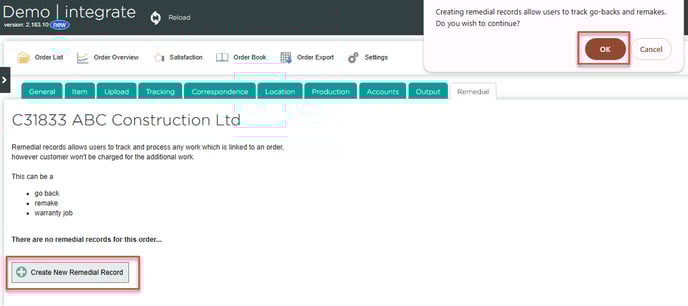
- Click Create New Remedial Record, then OK.
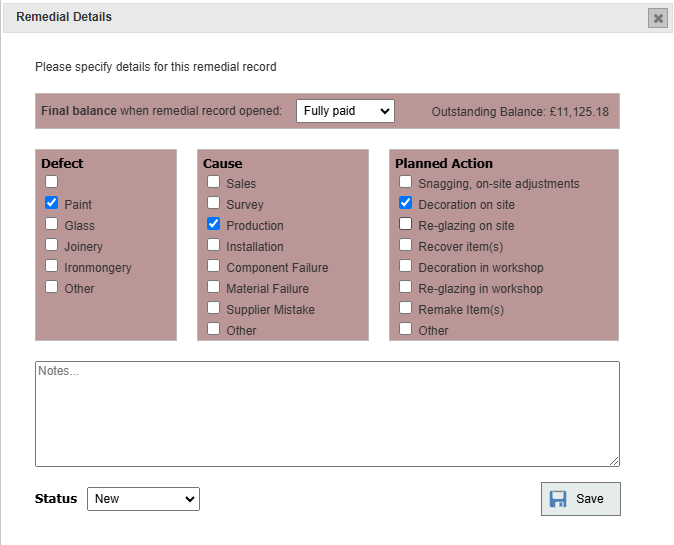
- Record the defect, cause, and planned action, along with whether the final balance for the order has been paid yet. Click Save.
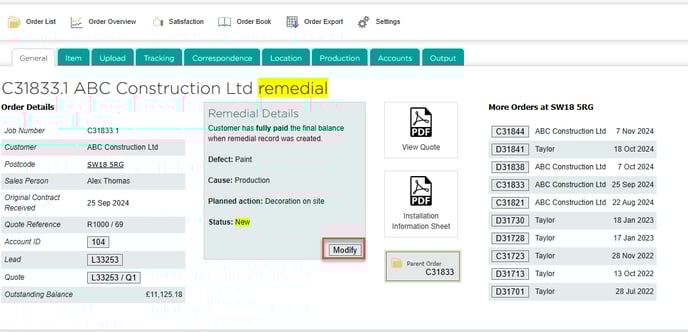
- A record for the remedial will be created, which will have the order number of the original order followed by a decimal point. To make changes, including to mark the remedial as completed, click the Modify button.
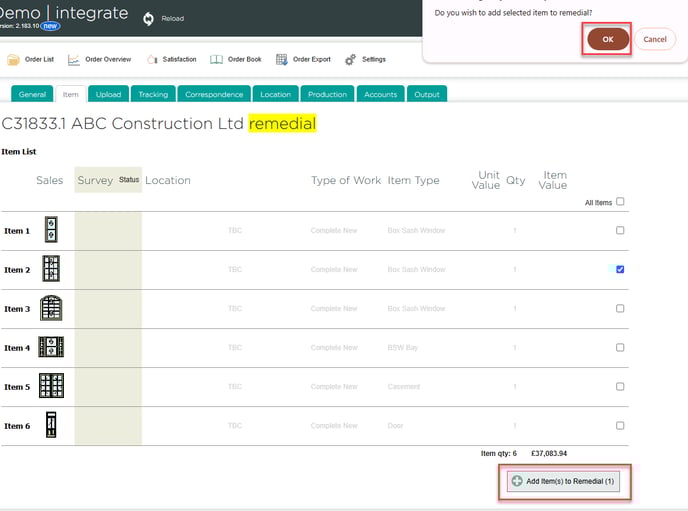
- To survey items for a remedial, click the Item tab. Tick one or more of the items and then click Add Item(s) to Remedial and OK.
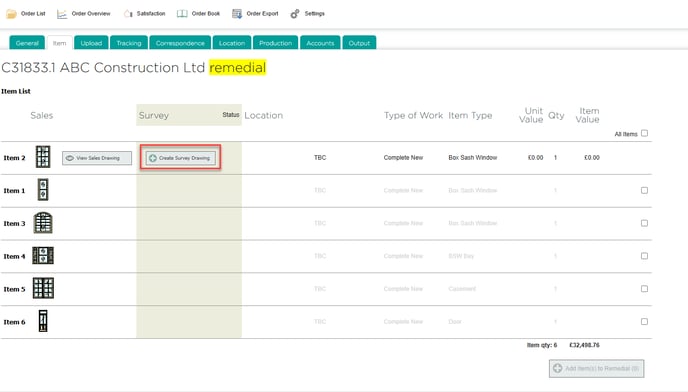
- You can then click Create Survey Drawing for each item on the remedial.
- This will open Drawing Board, allowing you to specify the repairs for each remedial item. For more on this, see the separate guide on Repairs.
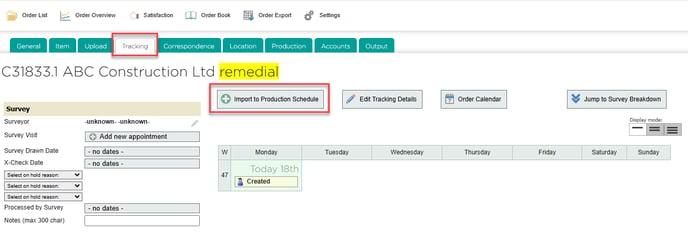
- Remedial jobs can be imported into the Production Schedule from within the Tracking tab, just like regular jobs.
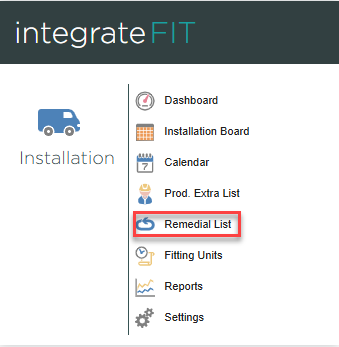
- To view a list of all remedials, click the Remedial List button under the integrateFIT module.