![End to End logo dark landscape cropped-01.png]](https://26925870.hs-sites-eu1.com/hs-fs/hubfs/End%20to%20End%20logo%20dark%20landscape%20cropped-01.png?height=40&name=End%20to%20End%20logo%20dark%20landscape%20cropped-01.png)
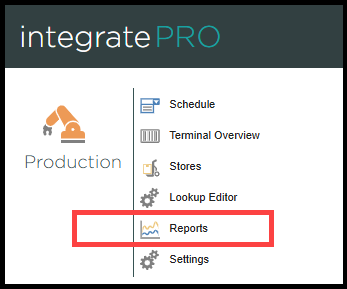
Step 1. The production performance report can be located from the main Integrate home page under the 'IntegratePro' module by clicking the 'Reports' tab from the list.
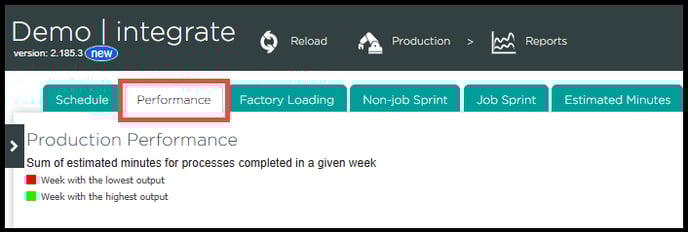
Step 2. Once you have navigated into the 'Reports' section, locate the 'Performance' tab.
Alternatively you can add 'Production/Reports/ProductionPerformance' to the end of your company URL in your browser.
E.G. https://Example.work/Production/Reports/ProductionPerformance
Which will take you directly to the Production Performance page.
What does this report show ?
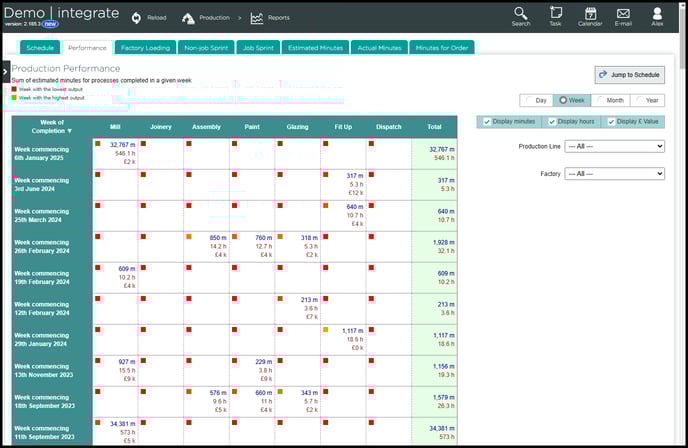
When the report page is first opened it will display an overview of the total number of estimated production minutes for each week, as well as the production item value broken down per process per week.
Selecting any of the boxes within the report will provide a detailed breakdown of the estimated minutes and production value for each individual item.
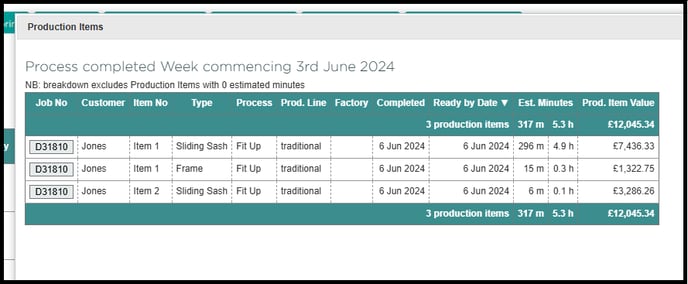
You will also notice each box has a small coloured square located in the top left of each cell, this indicates the most productive and least productive weeks in terms of estimated minutes.
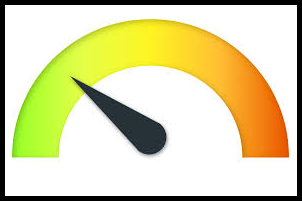
The coloured boxes work on a colour spectrum as imaged below with:
- GREEN - Being the week with the highest output
- RED - Being the week with the lowest output
- All other values fall in between the two, so it will be coloured accordingly .
Changing the view
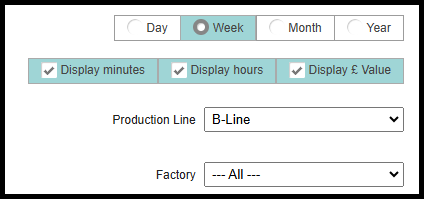
You can customize various elements of the report to better fit your specific time frame and data requirements. In the top right corner, you'll find four adjustable options that allow you to tailor the report to your needs:
- Time Frame - Four checkboxes allow you to change the viewable length of time displayed from per day to per year.
- Displayed columns - Ticking or unticking the one of the three tick boxes will show/hide the selected data within the report
- Production line - If your organisation has multiple production lines then this option will appear to allow you to Isolate just one or all of your production lines.
- Factory - If your organisation has multiple factories then this option will appear to allow you to Isolate just one or all of your factories.