- Login to the client's Microsoft account at https://entra.microsoft.com.
- On the left, go into Identity > Applications > App registrations.
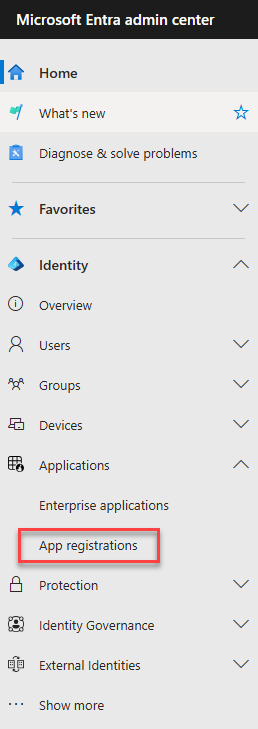
- Click New Registration.

- Fill in details as below. Redirect URI should be in the format https://[domain]/General/Response_OAuth2, where [domain] is the client's integrate domain. An extra redirect URI should be added for each subdomain that needs access to email integration. Click Register.

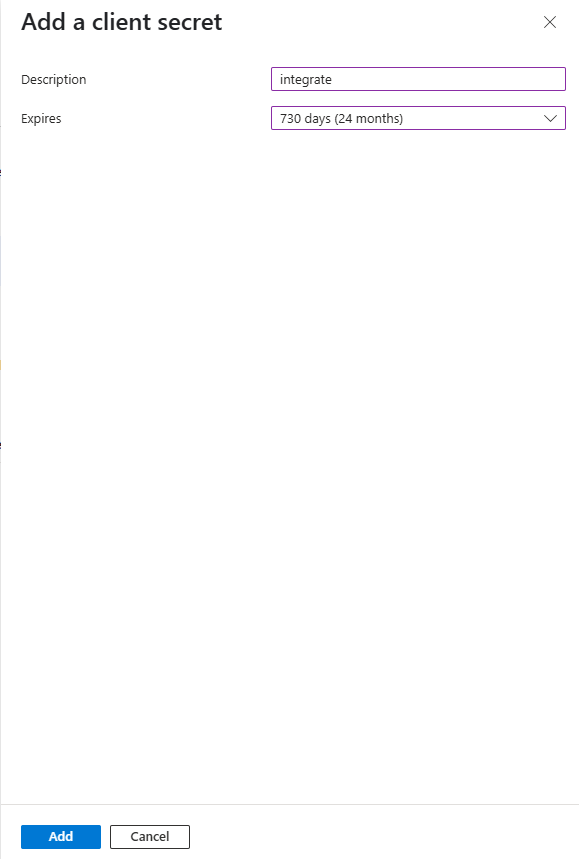
- On the newly created app, click Certificates & secrets > New client secret.

- Add a description, then set the expiration period to the longest possible (24 months), and click Add.
- Copy the Secret value (NOT the Secret ID - the correct one will always contain a ~ symbol). Paste somewhere safe.

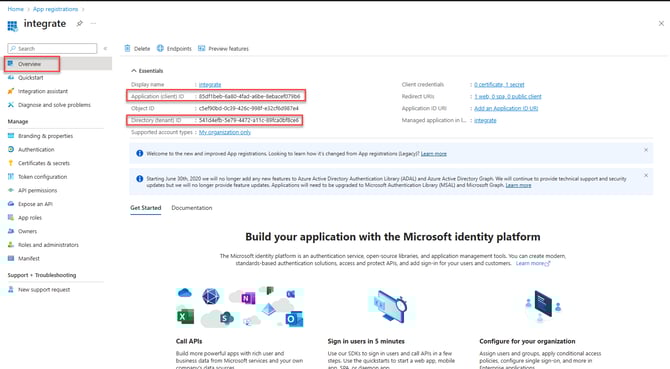
- Go to the Overview page. Copy the Application (client) ID and Directory (tenant) ID.
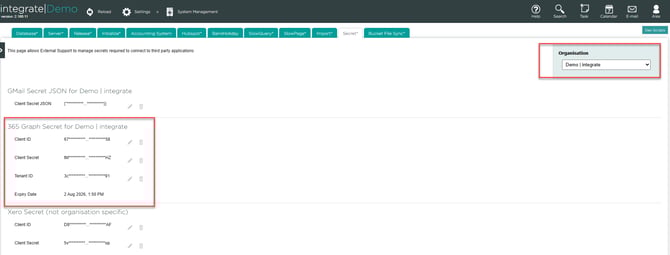
- Within the client's integrate system, go to /Settings/SystemManagement/Secret. Paste the Client ID, Secret, and Tenant ID under 365 Graph Secret. If the client has suborganisations, don't forget to do this for each one. (MSPs: please email the three values to support@endtoendit.com.)
- To test the connection, get the user to go to My profile > Mailbox > Check connection. They will be prompted to sign in to their Microsoft account, and grant permission to the application.
Troubleshooting: Need Admin Approval and similar errors.
English
![End to End logo dark landscape cropped-01.png]](https://26925870.hs-sites-eu1.com/hs-fs/hubfs/End%20to%20End%20logo%20dark%20landscape%20cropped-01.png?height=40&name=End%20to%20End%20logo%20dark%20landscape%20cropped-01.png)