![End to End logo dark landscape cropped-01.png]](https://26925870.hs-sites-eu1.com/hs-fs/hubfs/End%20to%20End%20logo%20dark%20landscape%20cropped-01.png?height=40&name=End%20to%20End%20logo%20dark%20landscape%20cropped-01.png)
Video Guide:
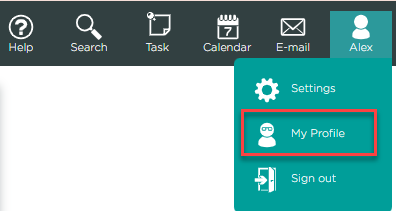
1. Click your name in the top right of integrate, then My Profile.
2. Click Mailbox.

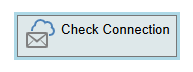
3. Click Check Connection.
4. At this point, you may be taken to a sign-in screen for your email provider - if so, please skip to step 5.
If you see a message that your account is already successfully linked, please click the Disconnect Button to sign out of your email account. Restart your web browser and renavigate to the mailbox page. Once again press the Check Connection button which will redirect you to a sign in page.
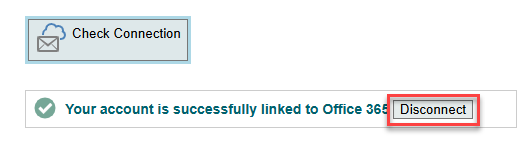
If you're having problems disconnecting your account, try going through the above steps in an incognito window (to access incognito mode, click the three dots in the top right of Google Chrome and then "New Incognito Window", or press Ctrl + Shift + N on your keyboard).
5. Select the desired email account, log in using your password for that account (NOT your integrate password), and grant any permissions that are requested. After this, your account will be synced - to confirm this, click the E-mail button in the top right of integrate, and you will be able to view your inbox and sent items within integrate.
