![End to End logo dark landscape cropped-01.png]](https://26925870.hs-sites-eu1.com/hs-fs/hubfs/End%20to%20End%20logo%20dark%20landscape%20cropped-01.png?height=40&name=End%20to%20End%20logo%20dark%20landscape%20cropped-01.png)
Step 1
If the quote is already published and the drawings are missing from the PDF, first copy the published quote as a new open quote using the button on the Matrix page.

If the quote is not yet published and the problem is with the quote preview PDF, go straight to step 2.
Step 2
On an open (unpublished) quote, click Update Drawings, and then re-generate the quote preview PDF. 
Step 3
If the problem persists, open each of the affected drawings and re-save it. To make the save button visible you will need to make any change to the drawing and then reverse it, e.g. toggle the PAS 24 setting on and then off again. Then re-generate the quote preview.
Step 4
Failing that, go to the Quote Overview page and rebuild the quote: in the Open Quote menu in the top right of the page, remove all drawings from the quote and click Update.
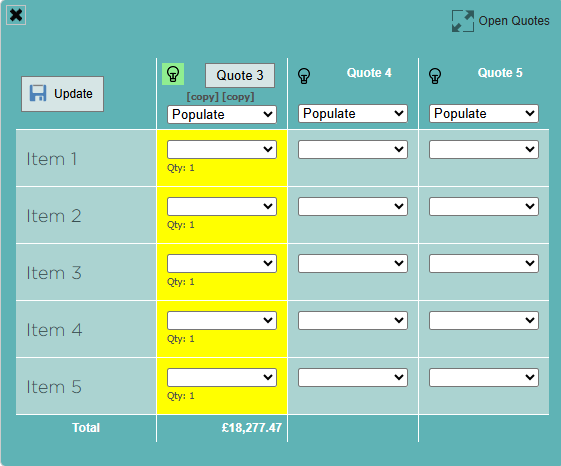
Then add the drawings back in and click Update again. Return to the Matrix page, click Update Drawings, and regenerate the Quote Preview.
Step 5
If the drawings are still missing from the PDF:
a) Take note of what layout is selected in the Matrix page.

b) Go to Quote Settings > Layout Editor and edit the relevant layout.

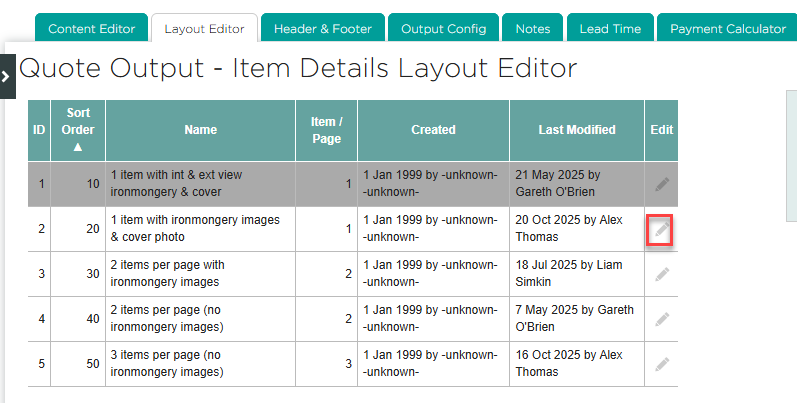
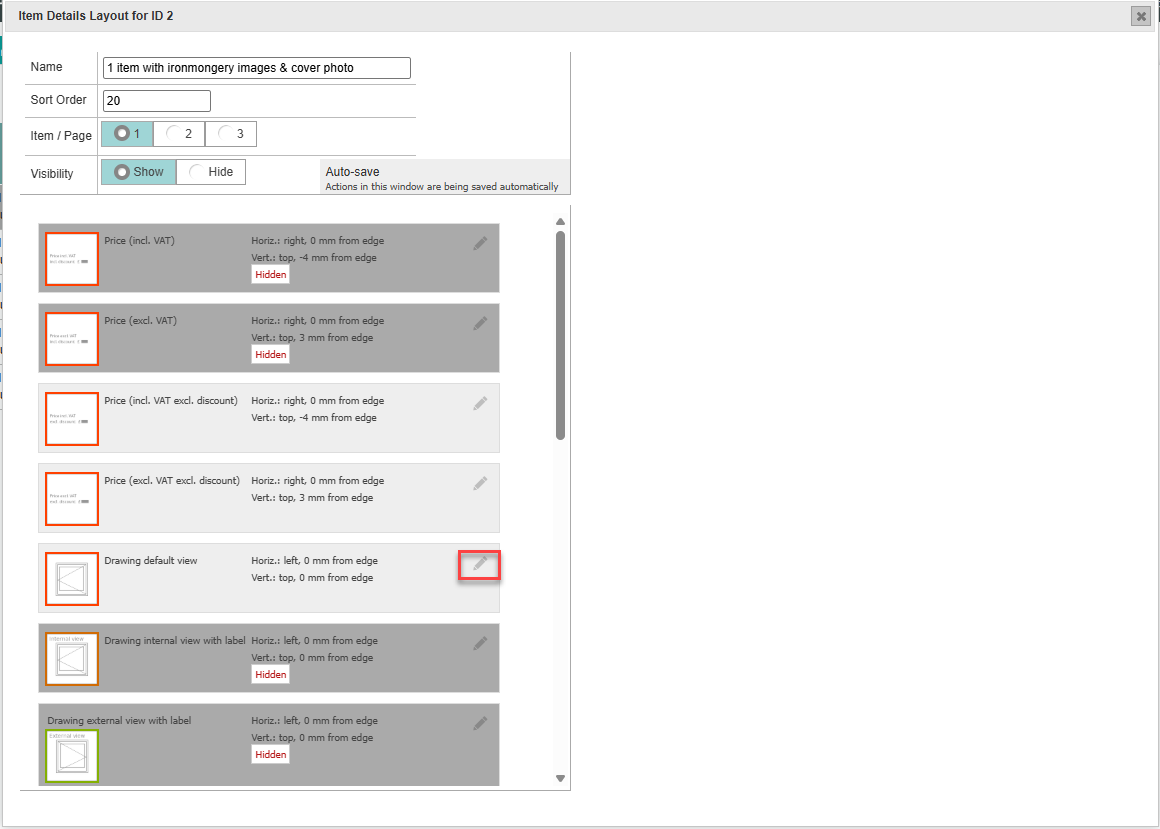
c) Edit the "Drawing default view" property, and ensure that Visibility is set to "Show".

If none of the above works, please contact EndtoEnd Support:
support@endtoendit.com
01422 761977