![End to End logo dark landscape cropped-01.png]](https://26925870.hs-sites-eu1.com/hs-fs/hubfs/End%20to%20End%20logo%20dark%20landscape%20cropped-01.png?height=40&name=End%20to%20End%20logo%20dark%20landscape%20cropped-01.png)
Key Points: Drawing Bay and Flag Windows
1. Add frames to a drawing.
A drawing with more than one frame is treated as a bay window in integrate. To add additional frames to a drawing, select an existing frame and click copy selected frame to left / right.


2. Specify frame widths and heights.
Within the drawing, each frame can have a different width and height. Select each frame individually to specify its width and height.

3. Additional properties for bay windows.
Frames details can be selected in the Explorer menu on the right or at the bottom of the property editor.


4. Change bay window properties.
The bay type can be changed, and the gap and angle between the frames specified:
Bay angles
a. Measurement - These are measured internally, for example, a flat / in-line bay is 180 degrees. The DrawingBoard is a two-dimensional (2D) visual representation. Angles specified will not affect how the drawing renders and can be displayed on the internal Schedule of Work (SOW) outputs.
b. Fully coupled - If fully coupled is selected as the bay type, the gap needs to be set to 0.
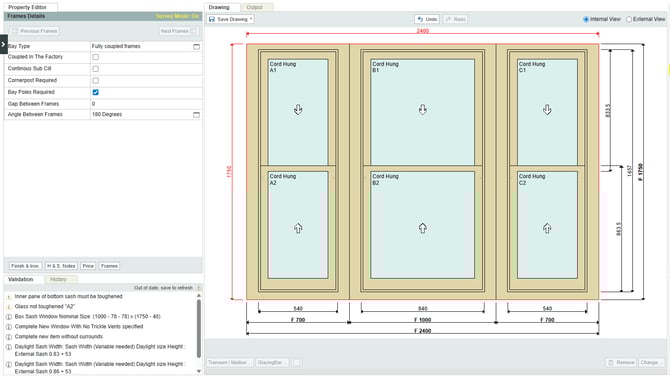
c. Fully coupled angled bays - Select each individual frame and use the left / right outer jamb extension properties to extend the outer liner to meet the adjacent one.

d. Flag window - The jamb overlap, based on the profiled width of the adjacent jambs, will be automatically set.
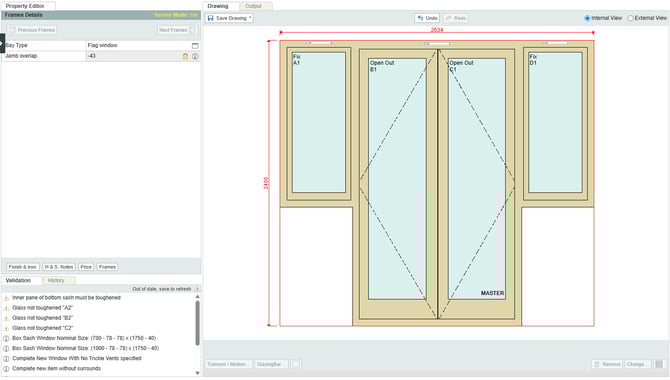
e. Flag width / Overhang - Select the left or right frame to specify flag width, or overhang.
