![End to End logo dark landscape cropped-01.png]](https://26925870.hs-sites-eu1.com/hs-fs/hubfs/End%20to%20End%20logo%20dark%20landscape%20cropped-01.png?height=40&name=End%20to%20End%20logo%20dark%20landscape%20cropped-01.png)
Key Points: Creating Lead Overview Reports
1. Access lead overview.
From integrateCRM home page, click lead overview.

2. Generate data reports.
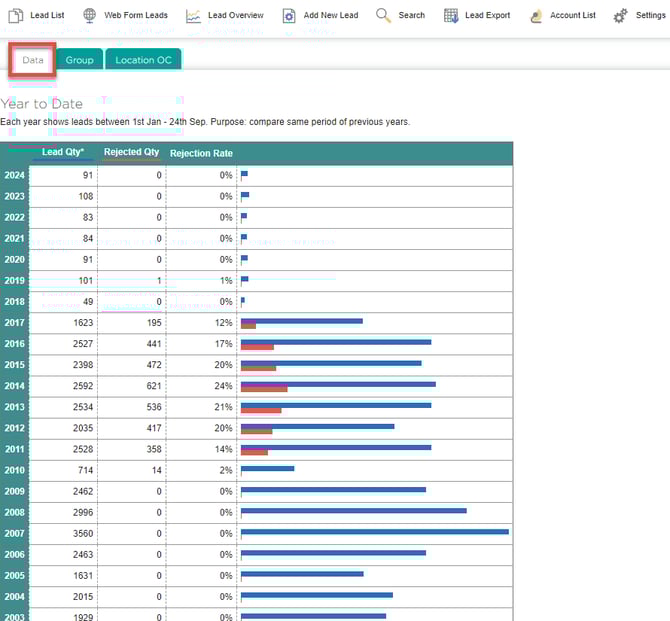
Click the data tab to see the number of leads per year, and the number of rejected leads.
3. Generate Group Reports.
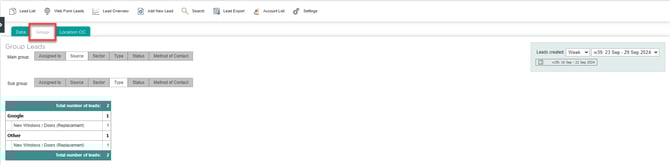
Click the group tab to view leads according to assigned salesperson, sector, or status. See two categories at once by setting a main group with a different sub-group (for example, how many quoted leads (status) are for domestic enquiries (sector) this month (set using data range on the right).
4. Generate geographical reports.
Click the location OC tab to look at the number of leads associated with a specific geographical area. Outward Code (OC) allows lead information to be chosen according to region, length of time, or time-period. From the dropdown menu on the right, select region, and leads created over a preferred date range to show relevant lead information corresponding to selections made.
