![End to End logo dark landscape cropped-01.png]](https://26925870.hs-sites-eu1.com/hs-fs/hubfs/End%20to%20End%20logo%20dark%20landscape%20cropped-01.png?height=40&name=End%20to%20End%20logo%20dark%20landscape%20cropped-01.png)
Video Guide: Splitting an Order
This video shows how to track and split large orders into smaller groups.
Key Points: Splitting an Order
1. Track the order.
Select the order to be split into smaller groups, and click the tracking tab.

2. Name the production groups/phases.
Under group, at the bottom of the page, type the name of each production group or phase that the large order will be split into. Click add.
3. Assign items to groups/phases.
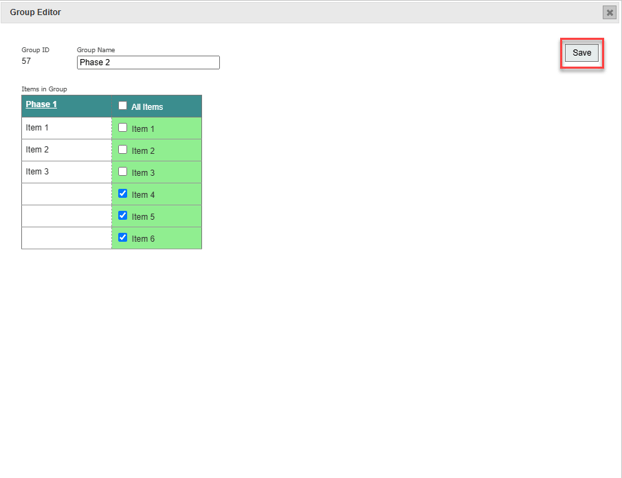
Click the pencil icon next to a group to select which items belong to that group. Click save.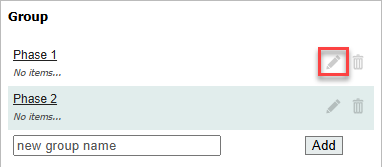
4. Generate production outputs.
From the output tab, after splitting an order production outputs identified by the blue puzzle piece icon  can be generated for one specific group/phase. Use the drop-down menu in the top-right to choose which group the outputs need to report on.

5. Assign items.
From the item tab, items can also be grouped in the same way, as production outputs.

6. Add an installation visit.
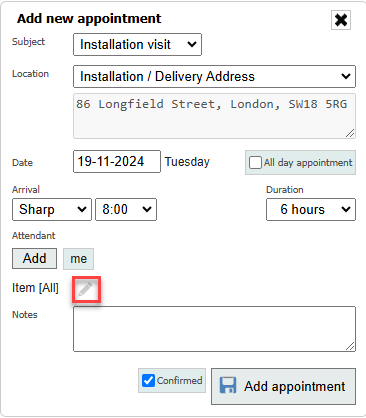
To add an installation date for a grouped order, click the pencil icon to set the installation date for each part of the order.
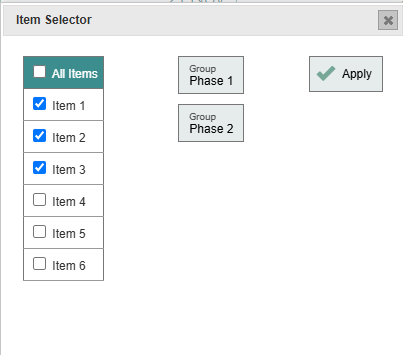
7. View appointments.
For the order, information will appear in the installation interface. Appointments will appear separately on the installation board.
