![End to End logo dark landscape cropped-01.png]](https://26925870.hs-sites-eu1.com/hs-fs/hubfs/End%20to%20End%20logo%20dark%20landscape%20cropped-01.png?height=40&name=End%20to%20End%20logo%20dark%20landscape%20cropped-01.png)
Key Points: Importing Emails from the Correspondence Page
1. Open the correspondence page.
From the correspondence page of the relevant lead or order, click import email from mailbox on the right of the screen.

Locate the email in the inbox or sent items, then click import. Repeat for multiple emails as required.

Key Points: Importing Emails from the Email Page
1. Open the email page.
Click the email button in the top-right corner of integrateCRM.
2. Select emails.
Locate the email in the inbox or sent items. The system will suggest the correct lead or order on the right. If no suggestion appears, search for the relevant record under manual import.
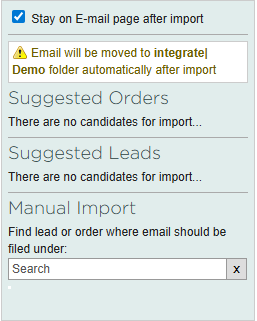
3. Import multiple emails efficiently.
When importing several emails, tick stay on email page after import. Otherwise, integrateCRM will redirect to the correspondence page after each import.
Key Points: Auto-file Emails
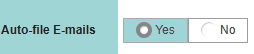
1. Enable setting on user's profile.
Enable auto-file emails setting on user's profile.
2. Import emails.
When enabled, imported emails are automatically moved from the user's inbox to a separate integrateCRM folder on Outlook or Gmail.
Note: Importing emails from the correspondence page is useful for importing one or more emails to a single lead or order. Importing from the email page is useful for importing multiple emails to different leads or orders.