![End to End logo dark landscape cropped-01.png]](https://26925870.hs-sites-eu1.com/hs-fs/hubfs/End%20to%20End%20logo%20dark%20landscape%20cropped-01.png?height=40&name=End%20to%20End%20logo%20dark%20landscape%20cropped-01.png)
Method 1: Using DevTools (F12) + Reload Button
This method does a hard reload and clears cache for that session.
Steps:
-
Open the webpage you want to refresh.
-
Press
F12to open Developer Tools. -
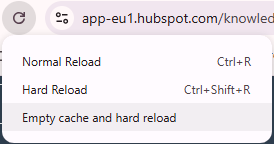
Right-click the Reload button next to the address bar.
-
You’ll see three options:
-
-
Normal Reload
-
Hard Reload
-
Empty Cache and Hard Reload
Click "Empty Cache and Hard Reload".
-
Example Image:
Method 2: Using Keyboard Shortcut Ctrl + Shift + Delete
This method allows you to manually clear cookies, cache, and other site data.
Steps:
-
Press
Ctrl + Shift + Delete(Windows/Linux) orCommand + Shift + Delete(Mac). -
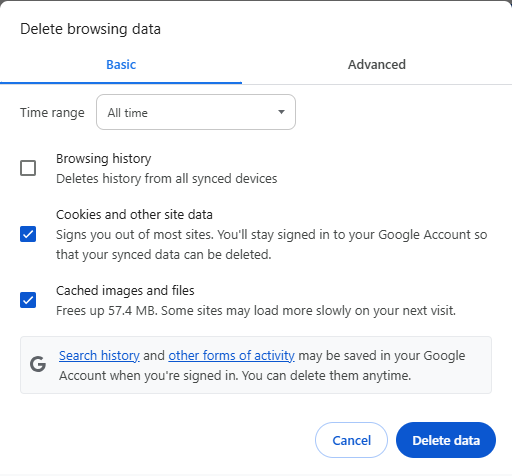
A "Clear browsing data" window will pop up.
-
Choose:
-
Time range: Select "All time".
-
Check:
- ☐ Browsing History
-
✅ Cookies and other site data
-
✅ Cached images and files
-
-
Click Delete data.
Example Image:
What’s the Difference?
| Method | What It Does | Best Used When |
|---|---|---|
| F12 + Right-Click Reload | Clears cache for the specific session and page | When debugging or refreshing updated site content |
| Ctrl + Shift + Delete | Clears all cache and cookies based on the selected time range | When fixing login issues, tracking bugs, or clearing full history |