![End to End logo dark landscape cropped-01.png]](https://26925870.hs-sites-eu1.com/hs-fs/hubfs/End%20to%20End%20logo%20dark%20landscape%20cropped-01.png?height=40&name=End%20to%20End%20logo%20dark%20landscape%20cropped-01.png)
As Integrate is a web based application, there is no Android/IOS app you can download. You can, however create your own "App" to navigate directly to your integrate site.
This is done through the use of the IOS shortcuts app in combination with google chrome.
You will need:
- Google Chrome installed on your IOS device.
- Apple Shortcuts installed on your IOS device.
To create a shortcut of your own you can follow the steps below:
Making a shortcut
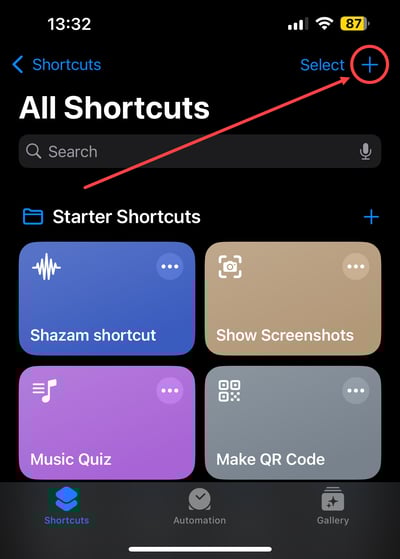
1. Locate and open the IOS shortcuts app on your device:

2. Select the '+' Located in the top right of the shortcuts application.
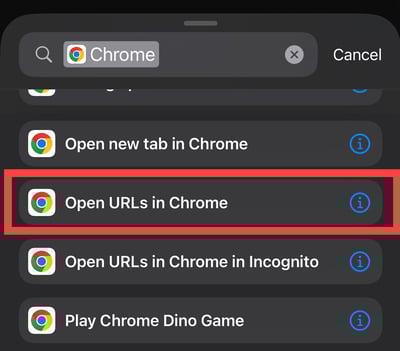
3. Using the search bar search for 'Chrome' and then select the 'Open URLs in Chrome' option.
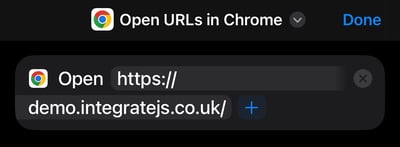
4. This will then create a shortcut step that will require the URL of integrate domain.
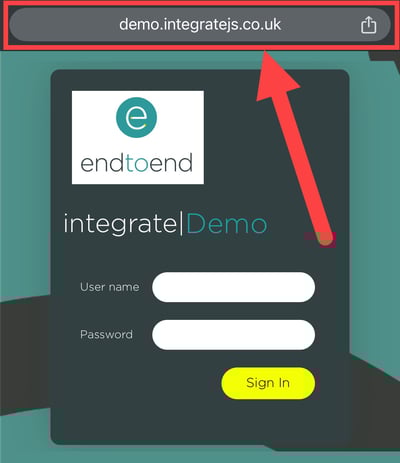
If you're unsure what to put here you can open your integrate site and directly copy and paste this from your chrome browser.
5. To add a name and an Icon to your shortcut there is a small 'V' icon which will display a drop down menu to allow you to 'Rename' and 'Choose Icon'.
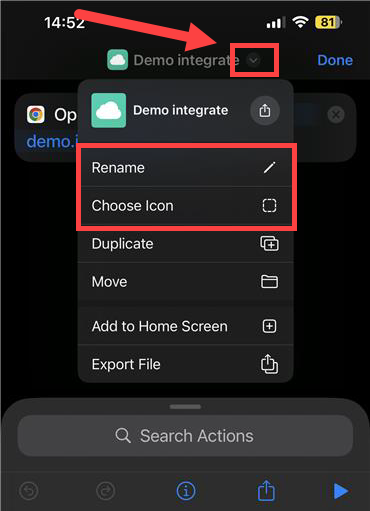
From here you can then press the 'Done' button in the top right of the shortcut editor page to complete your short cut.
How to add a short cut to your home page
Adding your short cut to your home page can be done from within your short cuts app.
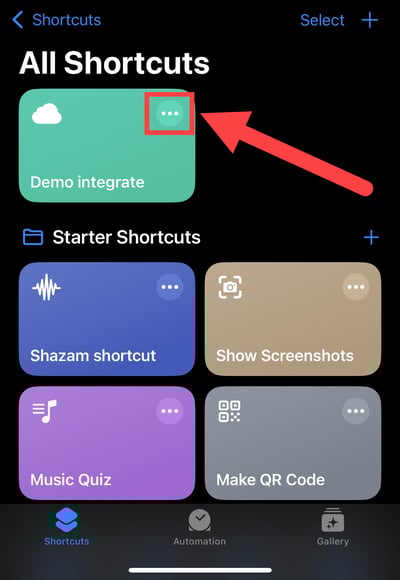
1. Locate your created shortcut within the short cuts app and click the three dots '...' on the top right of your shortcut.
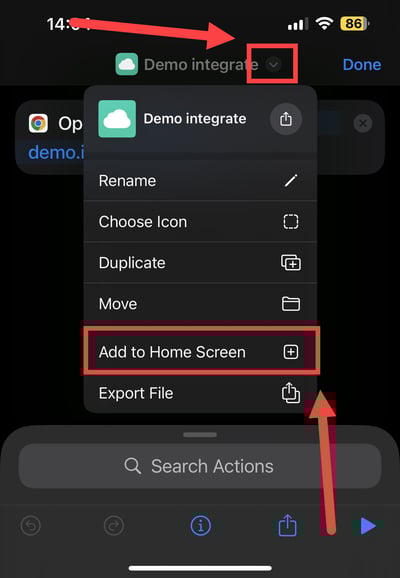
2. At the top your screen next to your shortcut name there is a small drop down menu button, click this to open the options. From here select 'Add to Home Screen +'.
3. This will then display the icon editor which allows you to chose a name, Icon and app icon colour.
Once you have set these properties simply click the 'Add' Button in the top right of the screen.
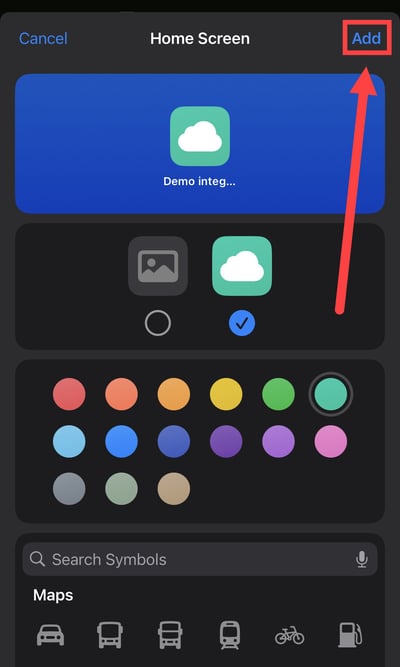
This app will now be added to your home page.