![End to End logo dark landscape cropped-01.png]](https://26925870.hs-sites-eu1.com/hs-fs/hubfs/End%20to%20End%20logo%20dark%20landscape%20cropped-01.png?height=40&name=End%20to%20End%20logo%20dark%20landscape%20cropped-01.png)
Key Points: Connecting Xero to integrateCRM
1. Navigate to Xero.
Open a browser tab to access the Xero development page, navigate to https://developer.xero.com/myapps/. Click new app in the top-right corner.

2. Create the app.
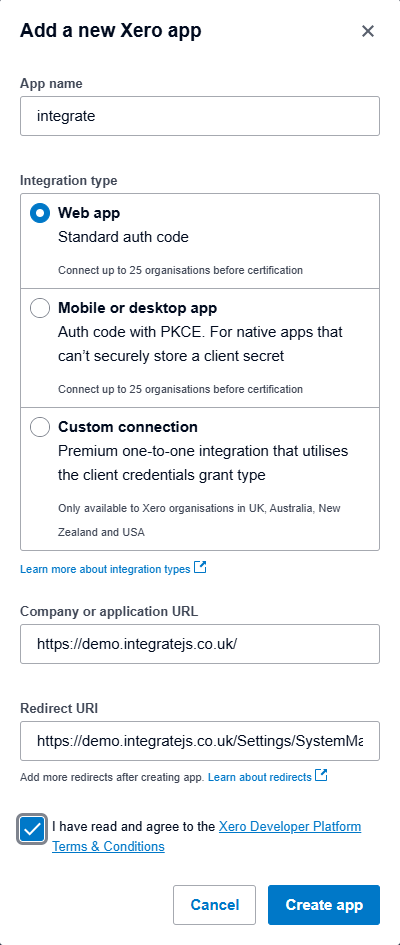
After clicking new app, a form appears:
a. App name - the name of the application which Xero is connecting to, e.g. integrate.
b. Integration type - select the web app option.
c. Company or application URL - this is the URL of your integrate application (e.g. https://demo.integratejs.co.uk/).
d. Redirect URL - the URL for the accounting system tab within the integrate application (e.g. https://demo.integratejs.co.uk/Settings/SystemManagement/AccountingSystem)
e. Terms & Conditions - tick to agree to Xero's terms of service.
Once all fields are completed, click create app at the bottom of the form.
3. Generate client secret.
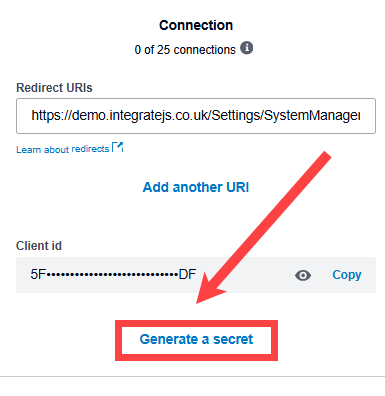
Navigate to the configuration tab on the left of the newly created app. Click generate a secret to create the client secret.
4. Record client secret and ID.
After generating the secret, copy and paste it to a secure location, such as a text file in Notepad. Repeat with the client ID above.
5. Confirm client secret and ID values.
Email the client secret and client ID to support@endtoendit.com, wait for confirmation both have been entered into the system.
6. Obtain Xero access token.
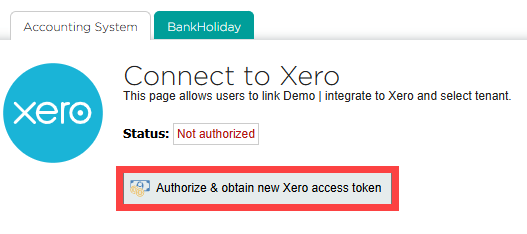
In integrate, click your name in the top-right, then go to settings > system management > accounting system. Click authorize & obtain new Xero access token.
If prompted, log in to your Xero account. On the access page, select the organisation corresponding to the relevant business. Click continue.
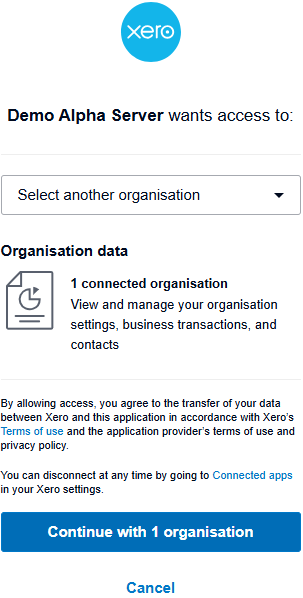
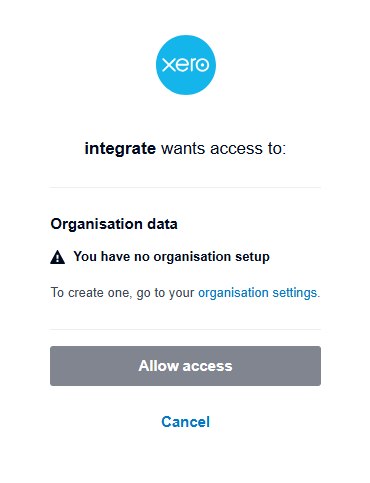
If a new user, and the Xero message "You have no organization setup" is seen, click the link for organisation settings to configure an organisation within Xero for your business.
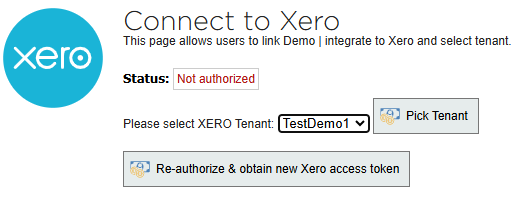
7. Pick tenant.
integrate will display a dropdown to select the tenant. Choose the correct Xero organisation and click pick tenant.
8. Verify connection.
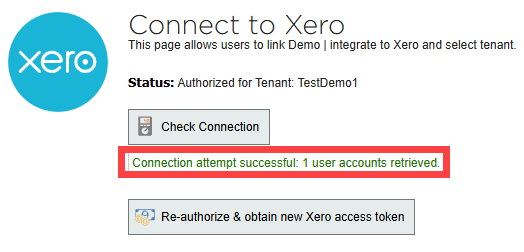
Click the check connection button to verify the connection between integrate and Xero.
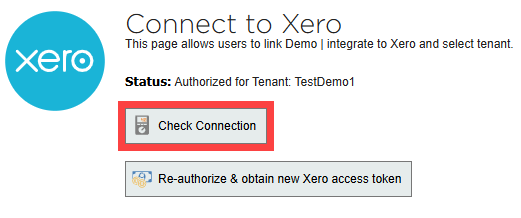
9. Connection established.
A successful connection displays connection attempt successful.