Skip to content
English
  • There are no suggestions because the search field is empty.

Connecting HubSpot to integrateCRM

Connect a new or existing HubSpot account to integrateCRM.

Learn how to access the HubSpot connector site, to link integrateCRM with a new or existing HubSpot account.


Step-by-Step: Connecting HubSpot to integrateCRM

Step 1 - Access HubSpot Connector site.                                                                                                                                Log into integrate as an external support account to have the required permissions and user privileges to access the HubSpot connector site.

Ensure that the client is included in services.yaml SEE HERE. Browser URL Extension to HubSpot page Settings > System Management > Hubspot

Note: Alternatively, copy and paste the URL extension  into the browser search bar (e.g. https://demo.integratejs.co.uk/Settings/SystemManagement/Hubspot)  and skip to Step 4.


Step 2 - Access settings menu.                                                                                                                                                    Click the settings tab beneath the user's profile icon to locate the settings menu.


Step 3 - Access system management.                                                                                                                                         On the settings page, click system management to continue.

Step 4 - Access HubSpot.                                                                                                                                                                       In systems management, click the HubSpot tab to continue.

Note: If the HubSpot tab is not visible it means the user is not logged in with an external support account, and does not have the required permissions to access this feature. To continue, log in with an account that has the external support role.


Step 5 - Connect to HubSpot.                                                                                                                                                           On the HubSpot page, click the connect HubSpot button in the top-left corner.

 

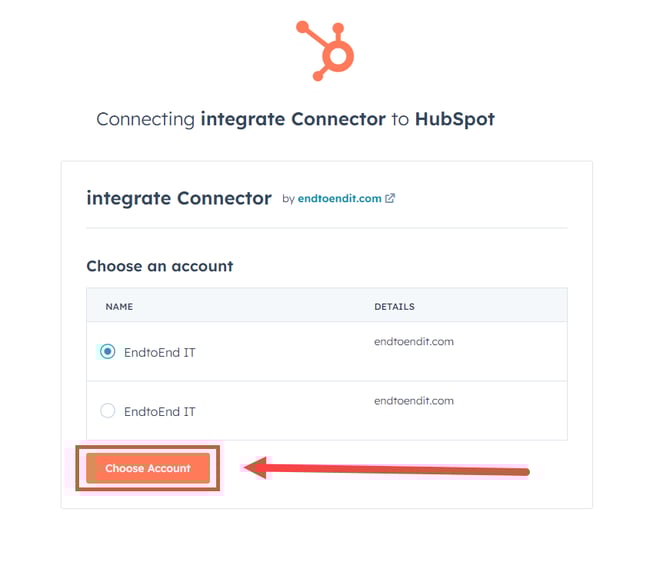
Step 6 - Log in to HubSpot.                                                                                                                                                                     If a first-time user, log in to add a HubSpot account. If already an account holder, select the desired account from the list and click the choose account button.
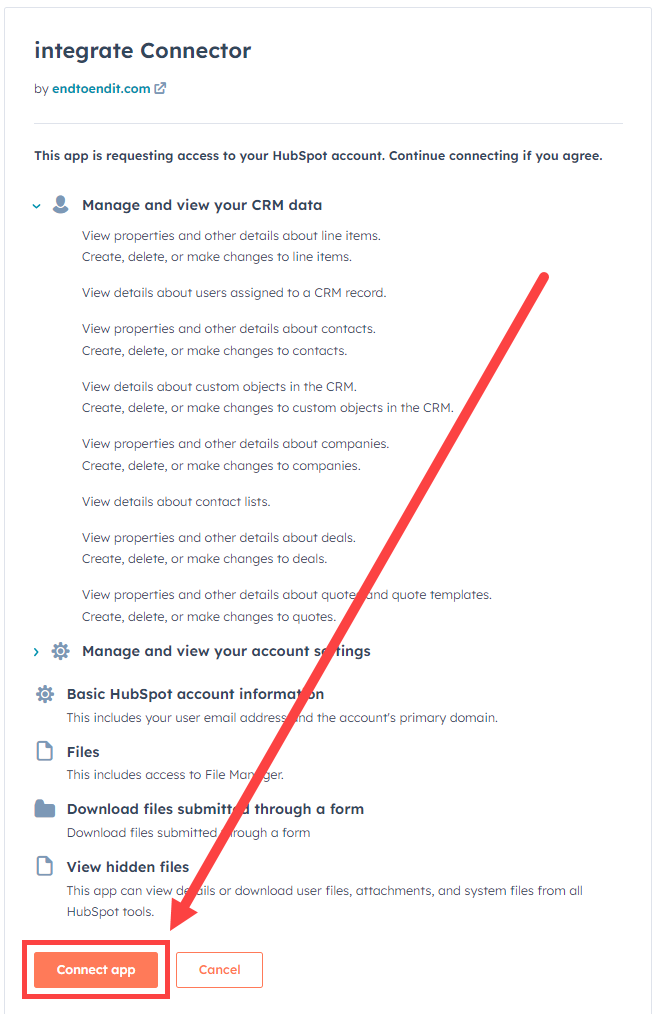
Step 7 - Connect to integrate                                                                                                                                                      Once logged in and selected the desired HubSpot account to integrate, click the connect app button, and the system will complete the connection.

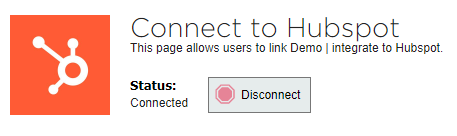
Step 8 - Complete connection.                                                                                                                                                        The HubSpot account should now be connected to integrate.