![End to End logo dark landscape cropped-01.png]](https://26925870.hs-sites-eu1.com/hs-fs/hubfs/End%20to%20End%20logo%20dark%20landscape%20cropped-01.png?height=40&name=End%20to%20End%20logo%20dark%20landscape%20cropped-01.png)
Key Points: Exporting Leads
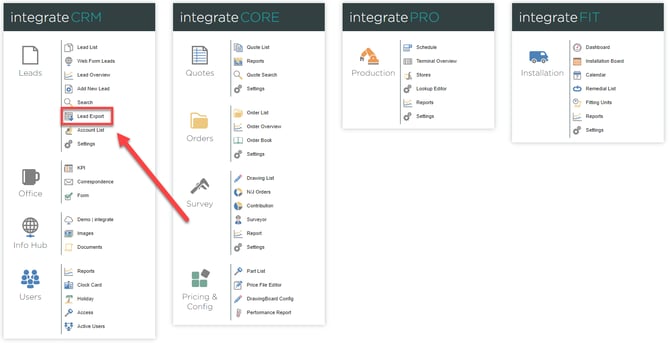
1. Open the lead export tool.
In the leads section on the left-hand side of the interface, select lead export.
2. Choose export options.
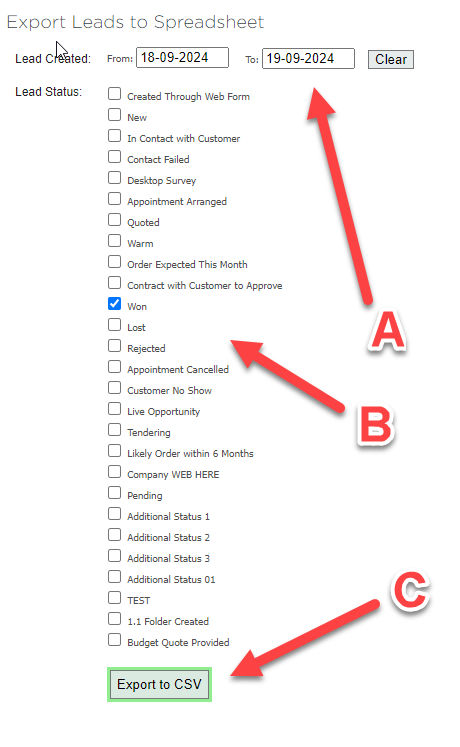
The lead export screen provides three options:
a. Lead created (A) – select the required date range.
b. Lead status (B) – select Leads with a specific status.
c. Export to CSV (C) – downloads a CSV file based on the selected options.
3. Export the file.
When the options are set, click export to CSV. This starts the export process and downloads the selected leads as a CSV file to the device.
Currently displayed leads are exported, including the selected date range, columns, and any applied filters.
Note: Leads can also be exported directly from the lead list. Click export to CSV in the bottom-right corner of the screen.