![End to End logo dark landscape cropped-01.png]](https://26925870.hs-sites-eu1.com/hs-fs/hubfs/End%20to%20End%20logo%20dark%20landscape%20cropped-01.png?height=40&name=End%20to%20End%20logo%20dark%20landscape%20cropped-01.png)
Key Points: Determining Size of Astragal Bars
1. Understand the duplex bar selector.
The duplex bar selector is an editor that allows rules to be configured to determine what size of astragal bars will appear on the glass cutting list for duplex windows. For example, if astragal bars are a different width from solid bars.
2. Access the duplex bar selector.
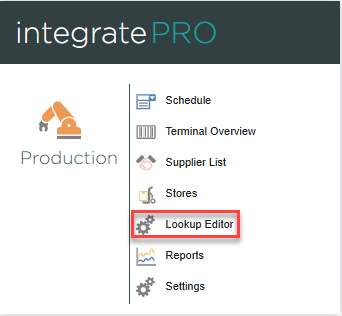
In integratePRO, from the main page click lookup editor , then duplex bar.

3. Create a group.
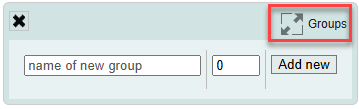
Create a group to start adding rules. Click groups in the top right, type the name of the group, then click add new. Separate groups can be created, for example, for different ranges, a group for sash windows, a group for casement windows.
4. Create a new rule.
Click add new selector rule to create a new rule.
5. Write the new rule.
Start writing the new rule by giving it a name. Select which group the new rule belongs to, and choose a loop. It is recommended leaving the loop field set to N/A, so the rule is run once for each item.
6. Sort the rules and assign priority.
Use sort order to determine where the new rule appears in the list of rules. When there are multiple rules, assign priority, low or high.

7. Trigger the rule.
The condition determines when the rule is triggered. For the example condition below, the rule will trigger for any item not set to individual panes/heritage units, and has more than one glazing bar.

Note: For more on information on writing conditions, see the article on working with rule editors.
8. Determining information shown on the glass cutting list.
The value determines the text that appears on the glass cutting list, and the width of the astragal bar(s) in the drawing. The width of the astragal bar should be written as a number, followed by the pipe symbol, followed by the desired text to be shown on the glass cutting list.
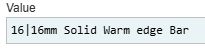
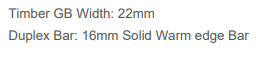
This would appear on the glass cutting list as, where 22 mm is the width of the solid bar as it appears on the DrawingBoard:
9. Writing rules for different bar types.
More complex rules can be written to specify different types of astragal bar for different ranges and thicknesses of solid bar. The following rules will trigger when range 1 is selected and glazing bar width on the drawing is set to 22 mm:

Ensure active is set to yes, and click create new rule.