![End to End logo dark landscape cropped-01.png]](https://26925870.hs-sites-eu1.com/hs-fs/hubfs/End%20to%20End%20logo%20dark%20landscape%20cropped-01.png?height=40&name=End%20to%20End%20logo%20dark%20landscape%20cropped-01.png)
Key Points: User Profiles
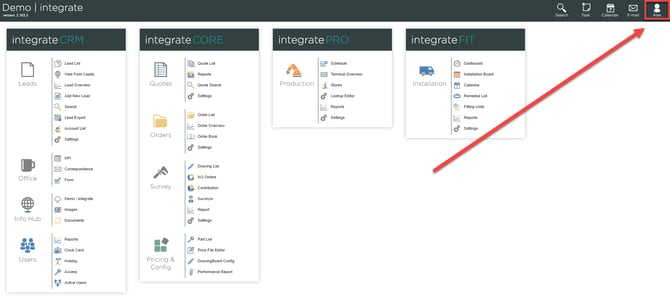
1. Access user profile.
To access my profile, click the white sihouettte icon with the signed-in user's name, in the top-right corner.
2. Menu options.
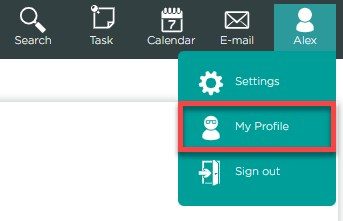
A small menu will appear with three options: settings, my profile, and sign out. Select my profile.
3. User details.
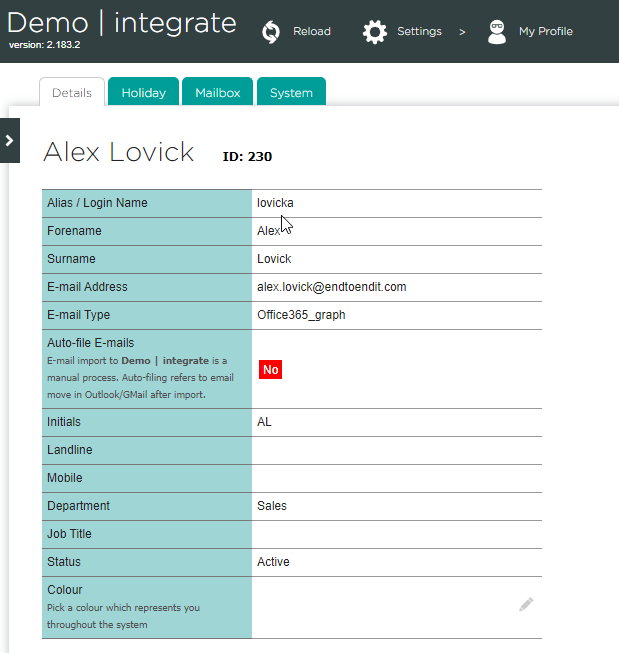
A summary of the user's details will be displayed, including username, email address, and contact information. This information cannot be edited from this page, any updates will need to be made by a user with access to the user list, found in settings.
4. Holidays and absences.
Select the holiday tab to manage holiday allowance and view other absences within the relevant department. To request time off, select the relevant date on the calendar and choose "AM" or "PM." Use the date selector on the right of the page to change the displayed year
Note: For more information, see this guide.

5. Mailbox integration.
From the mailbox tab, click the check connection button to:
a. Verify email account is synchronised with integrate, if an existing user.
b. Link mailbox with integrate, if a new user
Note: For email troubleshooting, see here.
6. Running integrate effectively.
From the system tab, run a benchmark test to verify if a device can run integrate effectively. A benchmark test initiates a series of performance checks on a user's device.
