![End to End logo dark landscape cropped-01.png]](https://26925870.hs-sites-eu1.com/hs-fs/hubfs/End%20to%20End%20logo%20dark%20landscape%20cropped-01.png?height=40&name=End%20to%20End%20logo%20dark%20landscape%20cropped-01.png)
Video Guide: Creating Items, Drawings, and New Quotes
This video shows how to manage quotes: finding the quote overview for a lead, adding items and drawings to a quote.
Key Points: Creating Items, Drawings, and New Quotes
1. Find the quote overview.
Find the relevant lead, or add a new lead (see 'Creating a New Lead' for guidance). Click the quote tab, and select manage quotes on the right.


2. Create items.
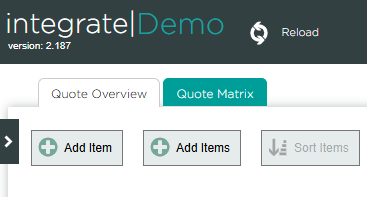
From the quote overview page, click add item, or add items. Create each door or window as a separate item. Specify elevation, floor, and room or reference number. Each item can have multiple drawings attached.
Note: Add items will only appear if no items exist yet.
3. Add drawing(s).
Next to an item, select a window or door. Click the sash window, casement, or door icon. Alternatively, click more to import an existing drawing from another lead or order.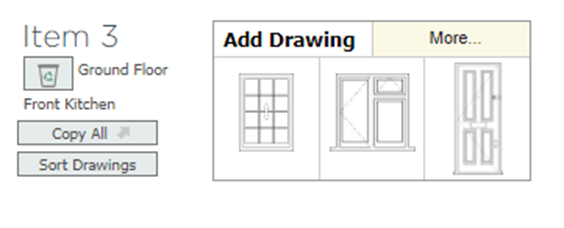
4. Select template.
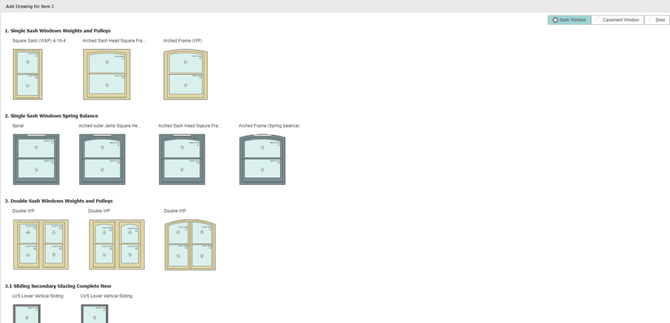
Select the best-fit template from the list. DrawingBoard will open with the chosen template as the starting point.
5. Edit template.
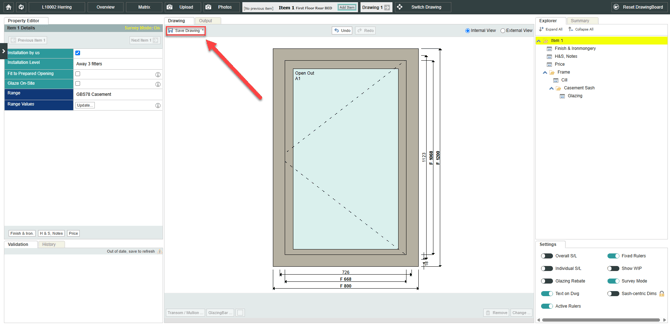
From the DrawingBoard, resize and edit the template as required. Click save drawing before moving on.
6. Work on remaining items.
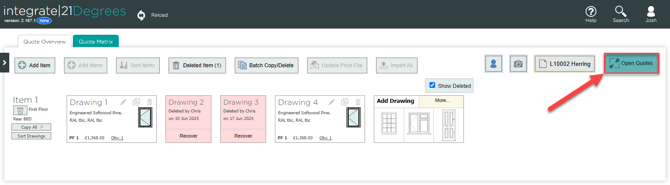
Click switch drawing or return to the quote overview page to work on remaining items. Once all items are ready, from the quote overview page, click open quotes.
7. Customise quote options.
In the open quotes view:
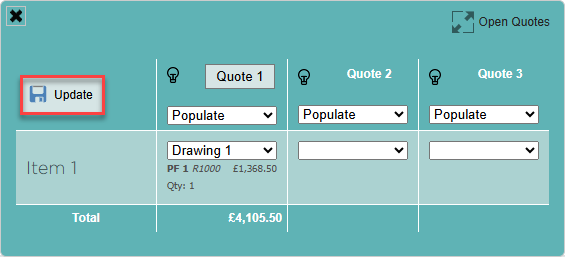
a. Select the drawing to display for each item in the quote.
b. Click update to apply the selections.
c. Create additional quotes by adding items to the other quote columns (for example, Quote 2, Quote 3, etc.).
8. Generate a quote preview.
Click the quote matrix.
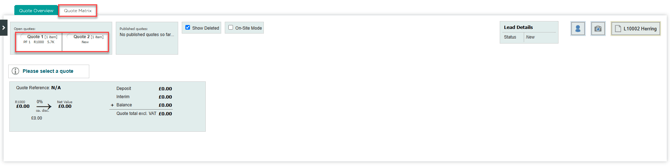
Select the quote to work on.
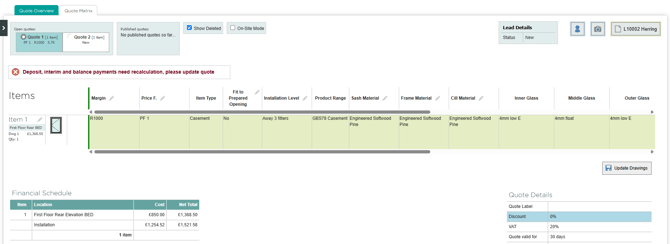
Change the price file and margin RNumbers for all items.
Click update drawings in the bottom-right corner of the items table if any changes have been made to existing drawings, or new drawings have been created.
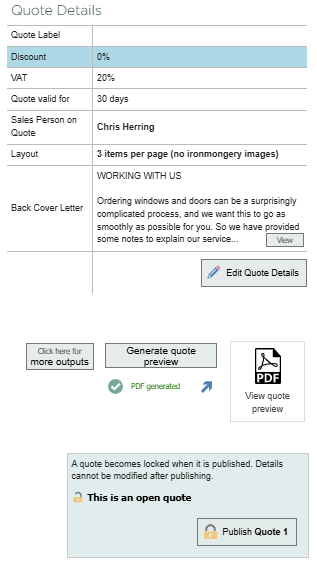
Edit general quote details in the quote details table.
Generate a quote preview to see how the quote looks.
9. Publish quote.
When happy with the presentation of the quote, finalise by publishing. If required, quotes can be copied and republished at a later date.