![End to End logo dark landscape cropped-01.png]](https://26925870.hs-sites-eu1.com/hs-fs/hubfs/End%20to%20End%20logo%20dark%20landscape%20cropped-01.png?height=40&name=End%20to%20End%20logo%20dark%20landscape%20cropped-01.png)
Key Points: Batch Updating Drawing Templates
1. Understanding batch update.
Batch update is used to ensure drawing templates are up to date when default values of a product range, such as, sectional details, material, or paint finish are changed.
2. Access the drawing template.
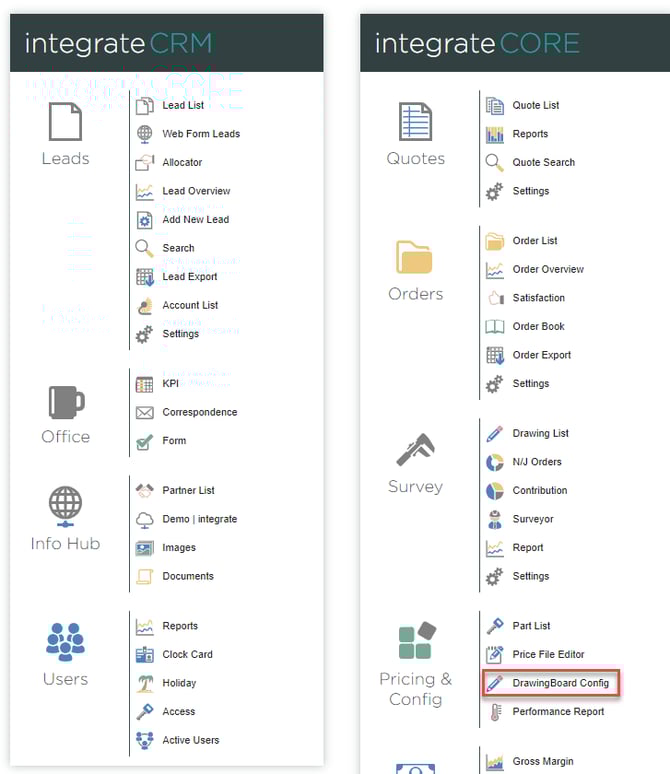
From the main page, navigate to pricing & config, then DrawingBoard config, then drawing template and click batch update, on the right.

3. Select the template group.
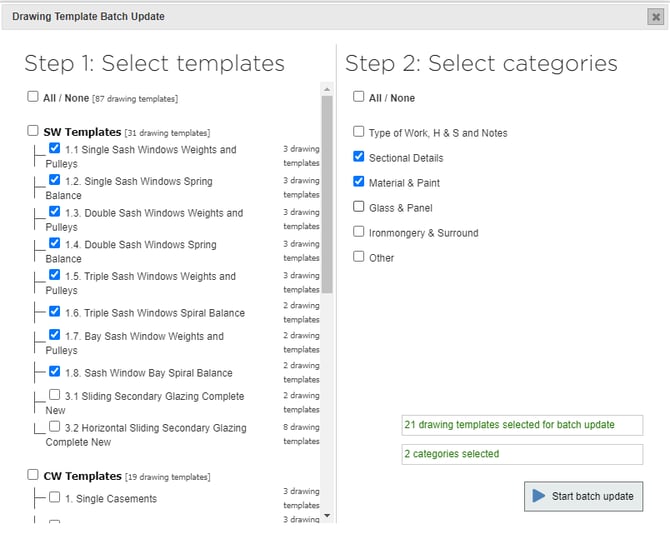
Select which template groups to update. It's advisable to only select the templates needed, as a batch update can take a while.
4. Update default values.
For the selected templates, select which default values to update. If unsure which category a default value falls under, navigate to DrawingBoard Config, then default values, to check the default values page.
5. Start batch update.
Click start batch update.
Note: Customer-facing ironmongery included with each template has to be updated manually by going into each drawing, it will not be affected by a batch update. The Ironmongery & Surround category updates the tick boxes only which determine if an item has a MPLS. is a front door, etc.