![End to End logo dark landscape cropped-01.png]](https://26925870.hs-sites-eu1.com/hs-fs/hubfs/End%20to%20End%20logo%20dark%20landscape%20cropped-01.png?height=40&name=End%20to%20End%20logo%20dark%20landscape%20cropped-01.png)
Key Points: Creating Appointments using the Tracking Tab
1. Access the calendar.
From the tracking tab of the lead or order, click lead calendar or order calendar.
2. Add new appointment.
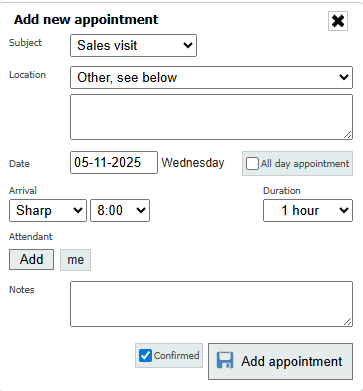
Click the date field and select the appointment date from the calendar. Complete subject, location, time, duration, and attendee fields. Add any additional information in the notes field. Click add appointment.
The default attendee is the user who creates the appointment. Remove by hovering over me and click the X button.
Note: For provisional appointments, untick the confirmed box to mark the appointment as TBC.
3. Edit, copy or delete an appointment.
Click an existing appointment to edit, copy, or delete it.
Key Points: Creating Appointments using the Main Calendar
1. Access the calendar.
From integrateCRM home page, click the calendar button in the top-right corner.

2. Add new appointment.
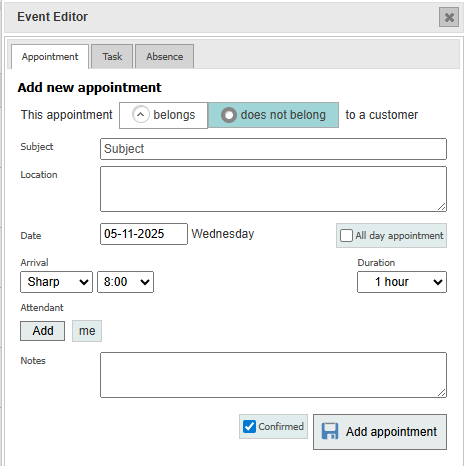
Click the date field and select the appointment date from the calendar. Complete subject, location, time, duration, and attendee fields. Add any additional information in the notes field. Click add appointment.
Link appointments with the relevant lead or order by saying it "belongs" to a customer.
The default attendee is the user who creates the appointment. Remove by hovering over me and click the X button.
Note: For provisional appointments, untick the confirmed box to mark the appointment as TBC.
3. Edit, copy or delete an appointment.
Click an existing appointment to edit, copy, or delete it.
Note: The tracking tab is ideal for creating sales, survey, or installation appointments linked to a specific lead or order. The main calendar is best for scheduling general appointments not tied to a customer. Appointments will appear in the main calendar regardless of where they are created.