![End to End logo dark landscape cropped-01.png]](https://26925870.hs-sites-eu1.com/hs-fs/hubfs/End%20to%20End%20logo%20dark%20landscape%20cropped-01.png?height=40&name=End%20to%20End%20logo%20dark%20landscape%20cropped-01.png)
Offset glazing bars
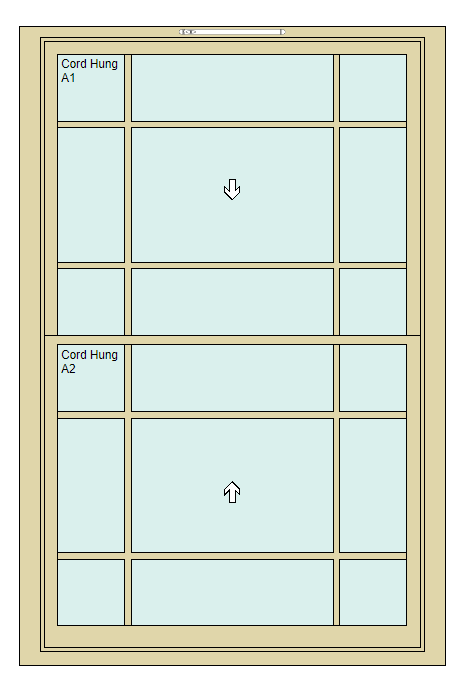
Suppose we want to create a design like this.
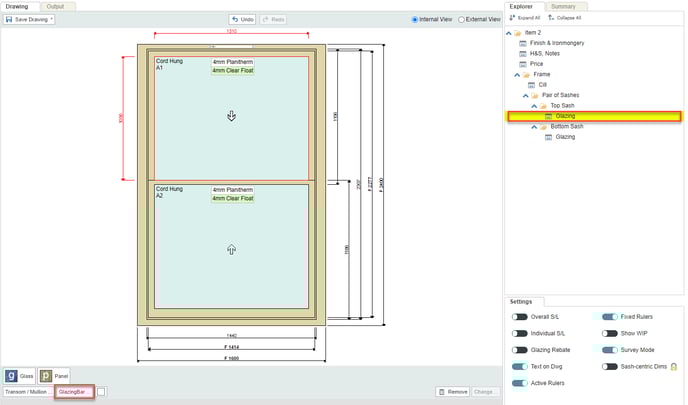
- Select a Glazing section and then click the GlazingBar button at the bottom.
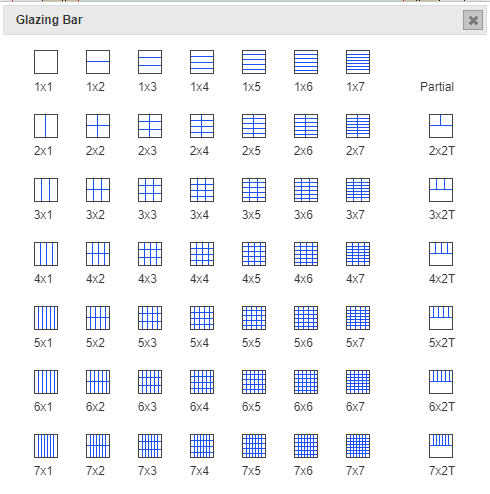
- The design we want is a 3x3 even if the panes are uneven, so select that option.
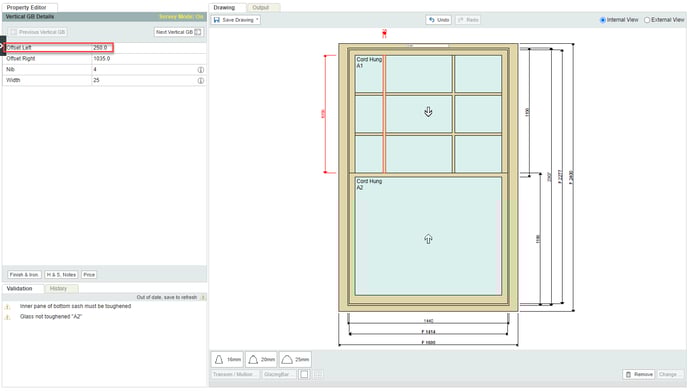
- Let's say that each glazing bar is 250mm from the edge. Select the left glazing bar and change the Offset Left to 250. Then select the top glazing bar and change the Offset Top to 250mm, etc.
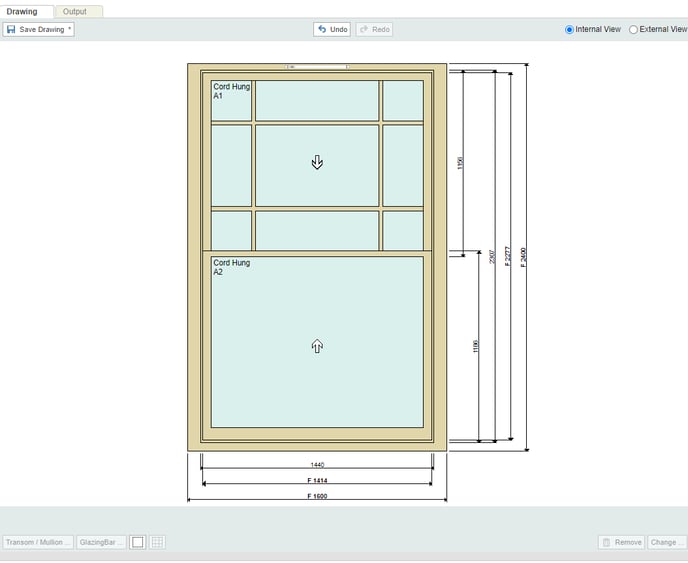
- Repeat the process with the other sash.
Partial glazing bars
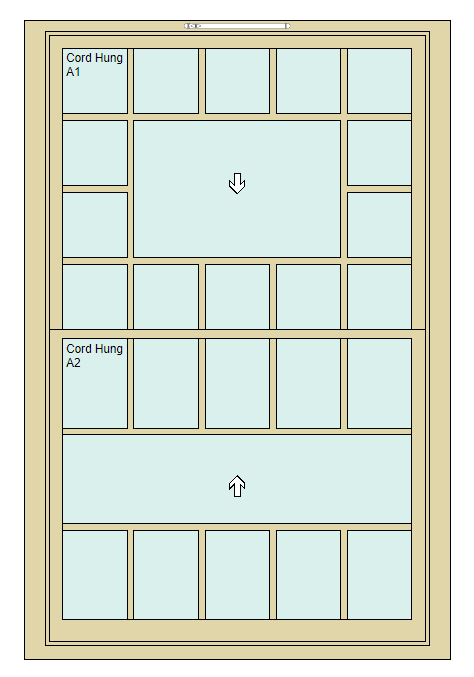
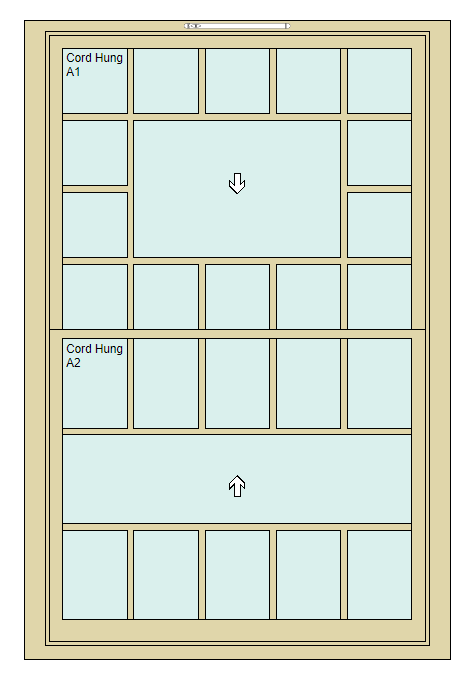
Suppose we want to create a design like this.
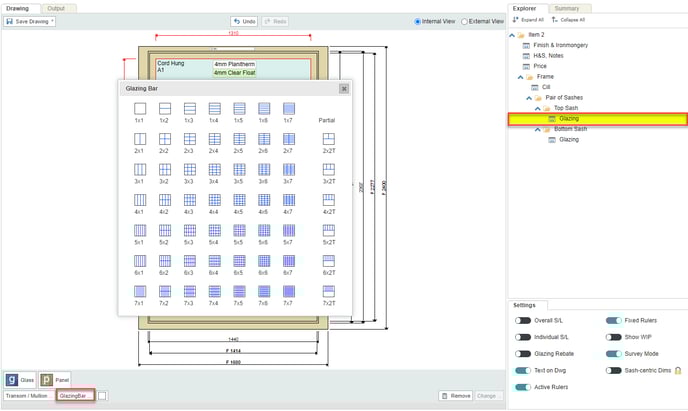
- We need to start off with a full glazing bar design, so select the glazing for the top sash and click the GlazingBar button at the bottom. In this case we want the 5x4 design.
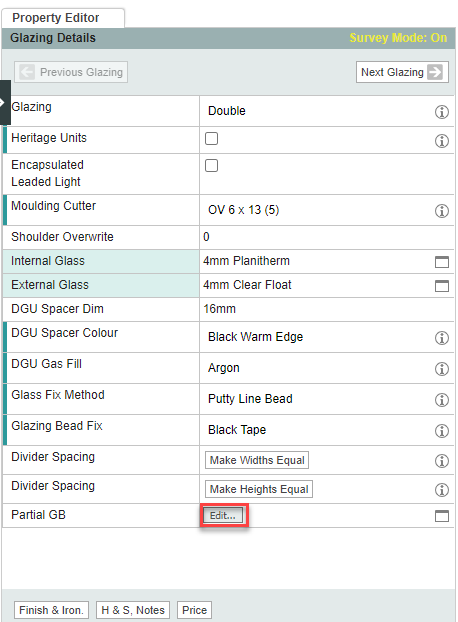
- In Property Editor for Glazing Details, click the Edit button next to Partial GB.
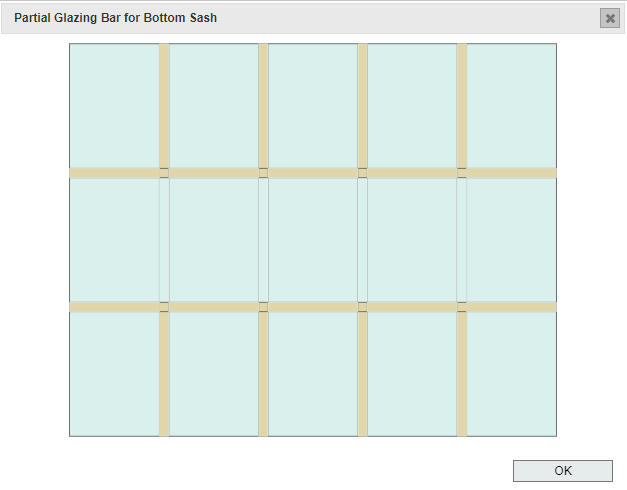
- In the partial glazing bar window, click any section of glazing bar to remove it (and click again to re-add it).
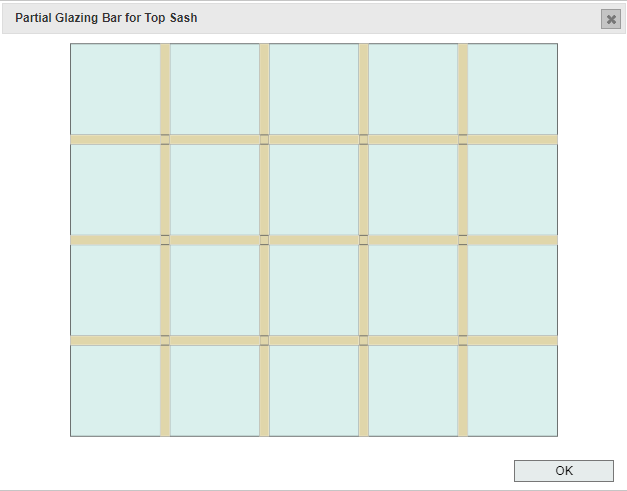
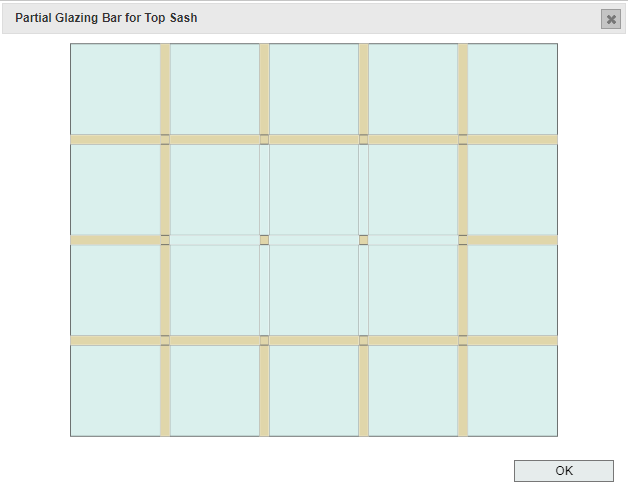
Not every design is supported by the system: all partial glazing bars must start at the edge of the sash, and join on to a full length glazing bar. Illegal designs will be highlighted in red.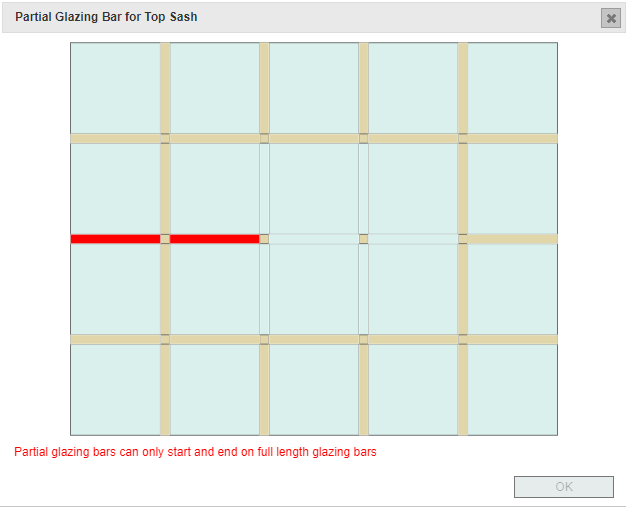
- Click OK.
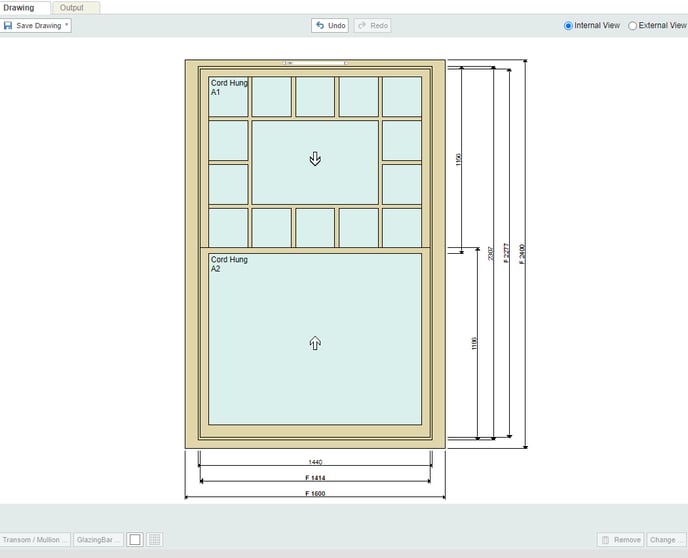
- Now select the bottom Glazing section, click the GlazingBar button, and choose the 5x3 design.
- Click Edit next to Partial GB. For this design we just need to remove the middle row of vertical sections. Click OK.