![End to End logo dark landscape cropped-01.png]](https://26925870.hs-sites-eu1.com/hs-fs/hubfs/End%20to%20End%20logo%20dark%20landscape%20cropped-01.png?height=40&name=End%20to%20End%20logo%20dark%20landscape%20cropped-01.png)
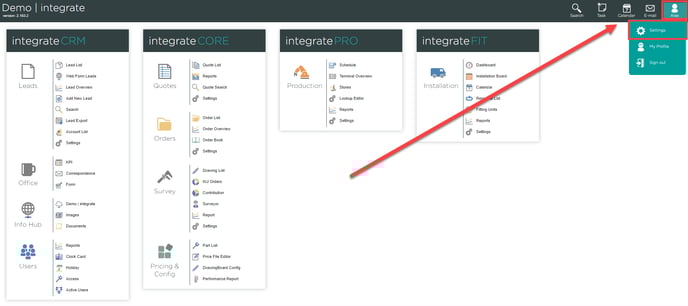
1. Whether you have new team members or simply need to create an additional account, adding extra users is straightforward within integrate. First, locate the "Settings" tab in the top right of integrate.
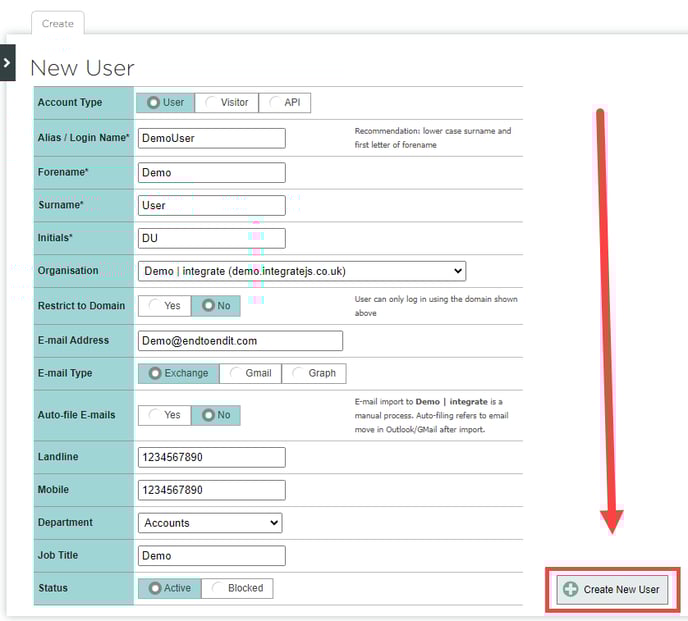
2. Once you've navigated to the settings page youll be presented with serval options, locate the "User Details" tab and click it. 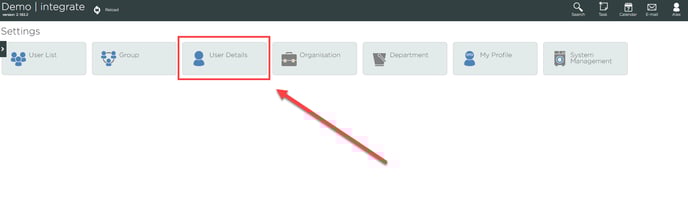 3. A "New User" form will be displayed, enabling you to input the new user's information. After filling in all required fields and verifying the accuracy of the details, simply click the "Create New User" button to add the new user to the system.
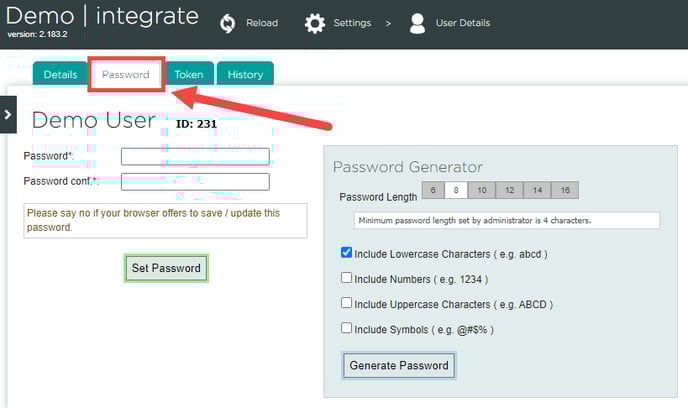
 4. After submitting the form, the page will refresh to display the profile of the newly created user. To set up the user's login credentials, click on the "Password" tab and either create a manual password by typing into the "Password" and "Password Conf" fields.
Or alternatively integrate offers an inbuilt password generator allowing the user to create a random secure password by simply clicking the "Generate Password" button, once generated a "Use Password" button will appear clicking it will automatically fill out the password fields.
Once a secure password has been added simply click the "Set Password".