![End to End logo dark landscape cropped-01.png]](https://26925870.hs-sites-eu1.com/hs-fs/hubfs/End%20to%20End%20logo%20dark%20landscape%20cropped-01.png?height=40&name=End%20to%20End%20logo%20dark%20landscape%20cropped-01.png)
Video Guide: Adding item Cover Images to a Quote
This video shows how to add drawings, upload images from a device's camera, and create a cover image for an item.
Key Points: Adding Item Images to a Quote
1. Upload image.
Open DrawingBoard on the item for which you want to add a cover photo. Click upload.
Note: For free-text items without drawings, upload the drawing via the lead's upload tab instead.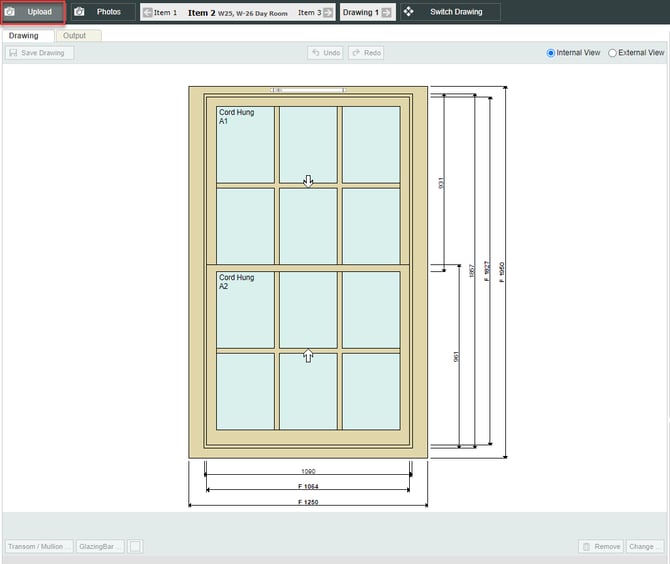
2. Add files.
Click add files and locate the image on your device. On a tablet there will be an additional camera option which opens the tablet's camera, allowing images to be taken on site and immediately added to the drawing.

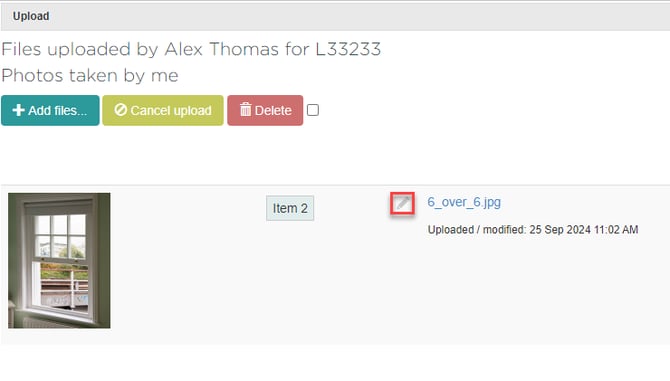
3. Upload files.
After uploading the image, click the pencil icon.
 4. Set cover image.
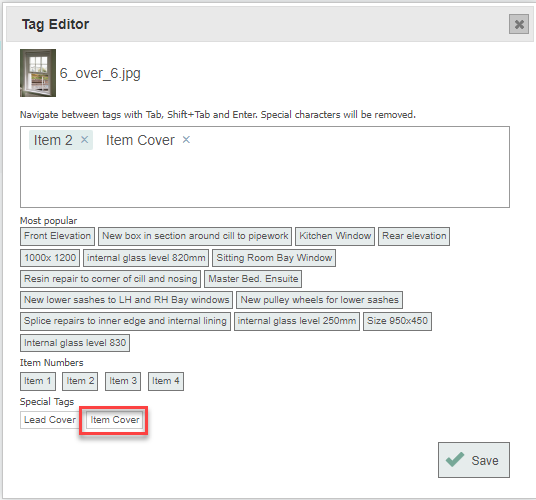
Select the photo for the item cover image. Tag the photo with the correct item number. Next, click item cover to add it as a special tag. Click save.
5. Edit quote details.
From the quote matrix page, click edit quote details in the bottom right.
Note: Ensure the selected layout option includes a cover photo.

6. Produce the quote PDF.
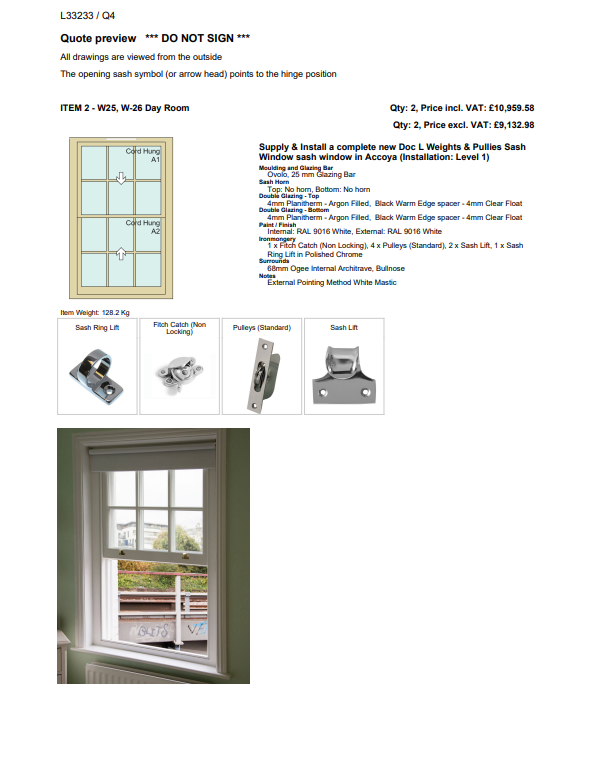
When the quote PDF is produced, the cover image will appear beneath the drawing.